Mark a Worksheet for a whole class
Open the marking view for any Worksheet you have set, see what is marked and what is waiting for you, draft marks and feedback for written answers with AI assistance, approve a question at a time, and return marks knowing exactly what students will see.
Every Worksheet you set has one marking view. It shows where the class stands, drafts marks and feedback for the written answers, lets you decide a question at a time, and returns the marks when you are ready. Questions with a set answer, such as multiple choice, fill in the blanks, number and trace-table questions, are checked against the answer with no AI involved. Written answers are drafted against the marking guidance in the Worksheet, and nothing reaches a student until you return it.
1. Open the marking view
There are three ways in, and they all open the same view:
- Recently set work: choose the Worksheet you set.
- A student's work: select Class marking at the top.
- The class progress matrix: select the Worksheet's column.
Back closes the view and puts you where you were.
2. Read where the class stands
Four counts sit at the top, and each one means exactly one thing:
- Not marked: answered, no mark yet.
- Waiting for you: AI drafts you have not decided on.
- Ready to return: approved by you, or checked against the answer.
- Returned: students can see these.
Under the counts, one line says what happened last, such as "Marked automatically at hand-in", with the time and how many students it covered. Then there is one row per student: handed in or not, their marking bar and their total so far. The bar shows how much of that student's work is marked, not marked, waiting for you or ready to return, so a glance down the column tells you whether the class is ready to go back.
To narrow the list, choose a group: Handed in, Not handed in, Has drafts to check or Not started.
3. Draft marks and feedback
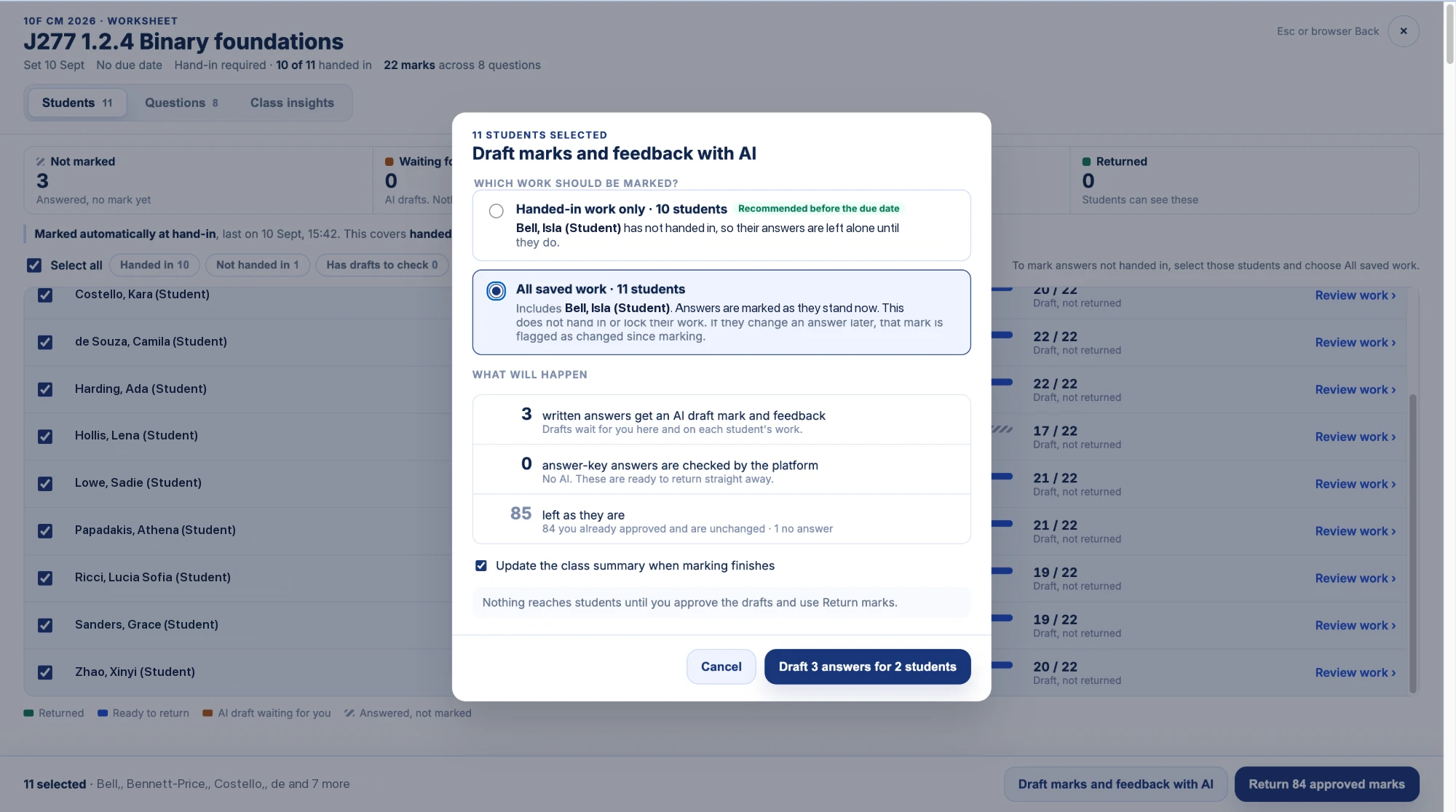
When a due date passes or a student hands in, the drafting starts by itself, so drafts are often waiting when you open the view. To run it yourself, select Draft marks and feedback with AI.
It asks one question first: handed-in work only, or all saved work. Choose all saved work when students have finished but forgotten to hand in. Before you confirm, it sets out what will happen: how many written answers get a drafted mark and feedback, how many questions with a set answer are checked with no AI involved, and how many are left alone, with the reason.
4. Decide a question at a time
Open the Questions tab. Drafts are grouped by question, with the class average beside each one and the marking guidance alongside the answers. For each draft you can:
- Approve it as it stands.
- Edit the mark or the feedback.
- Keep as wording only, which keeps the feedback and leaves the mark for you to set.
- Dismiss it.
Approve all accepts every draft for that question in one go. Reading every answer to one question together is quicker than reading one Worksheet at a time, and it keeps your marking consistent across the class.
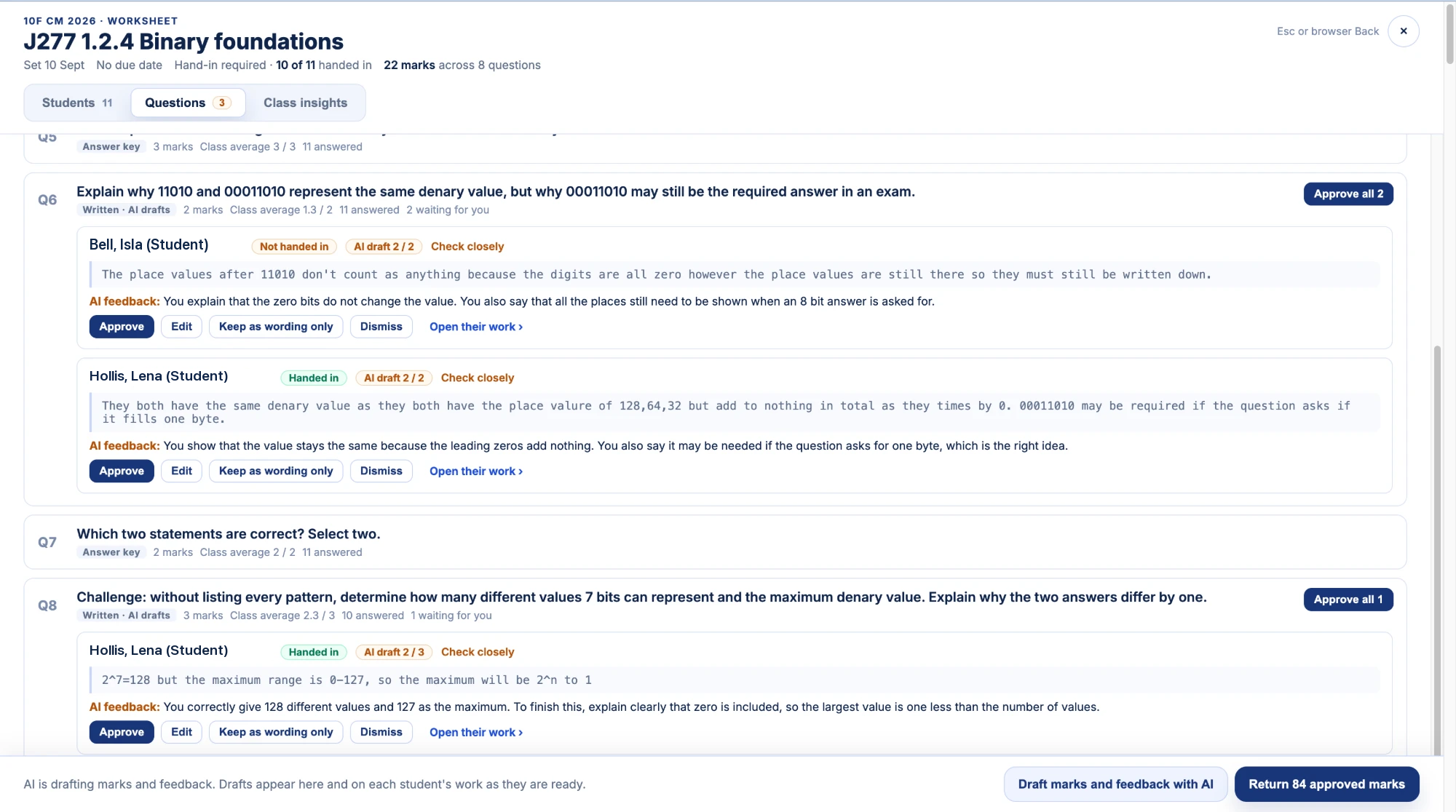
Every draft is labelled as a draft until you approve it. Approving does not send anything to students.
5. Mark or redraft one answer
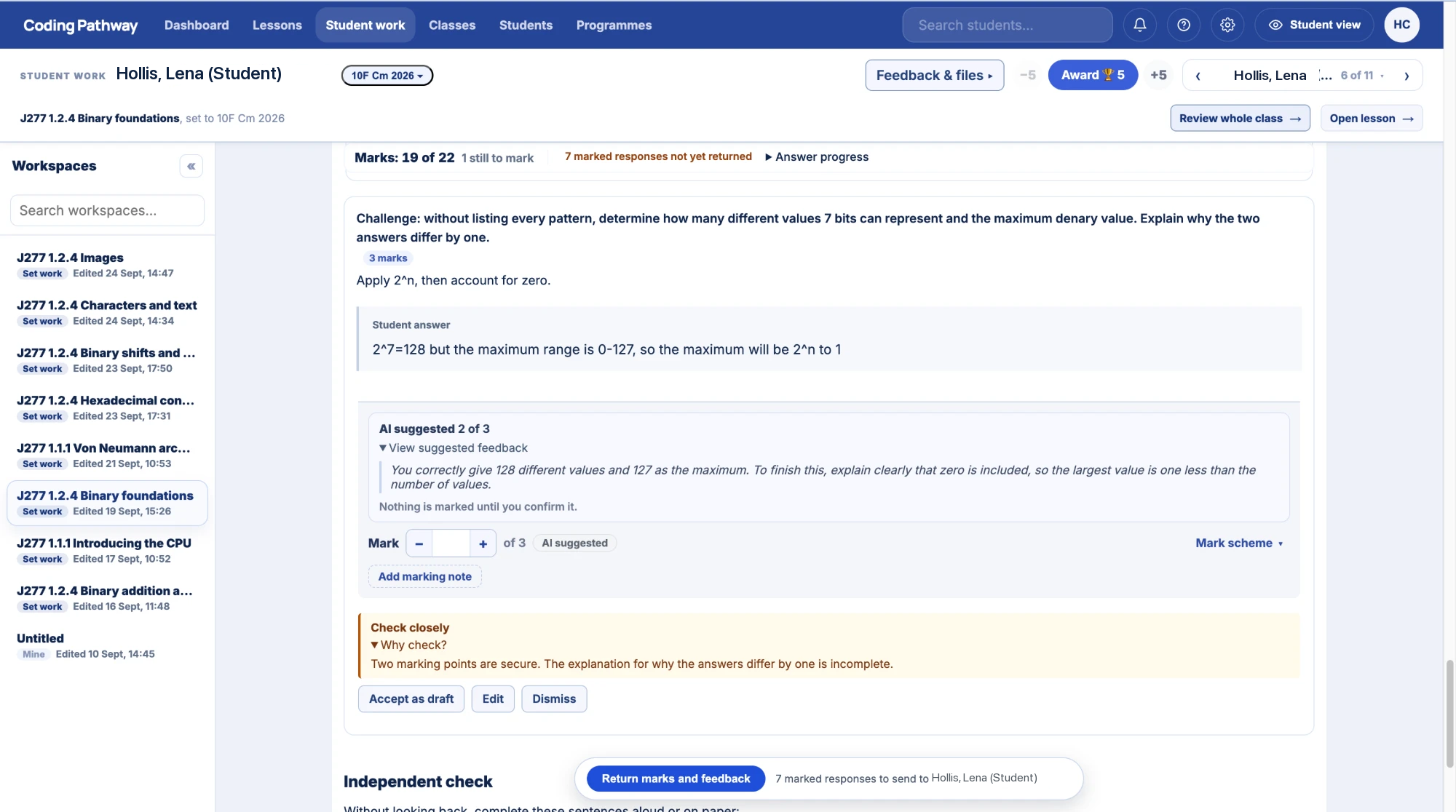
Sometimes you want to look at one student's answer on its own. On a student's work, any written or code answer has a Draft button in the mark editor, or Redraft if a mark is already there. It shows what the AI will be given, which is the Worksheet, the year group, the question and its marking guidance, and asks "Anything else for the AI?" for that one draft. A redraft sits beside your existing mark for you to compare, and your mark stands until you choose to use the new one.
6. Return marks
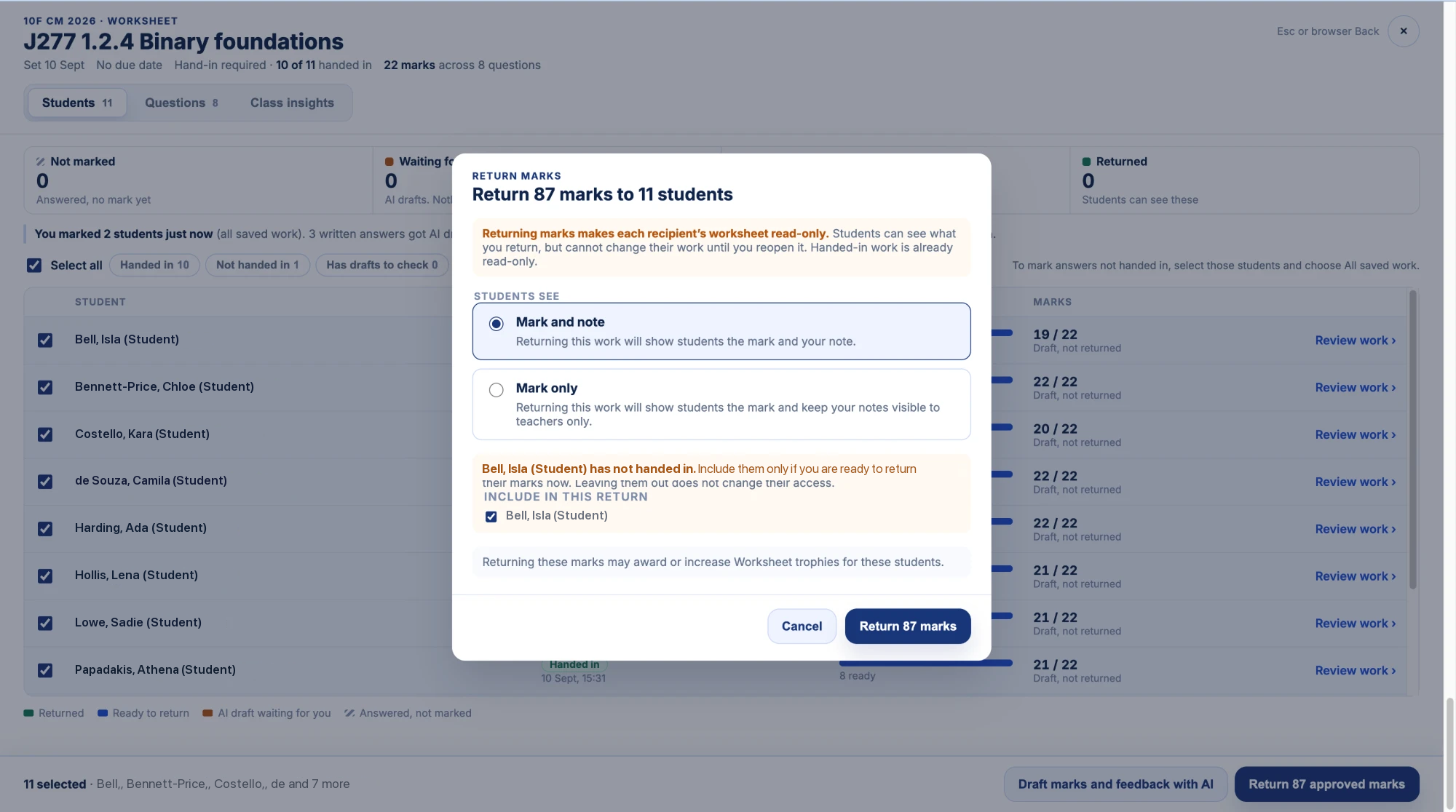
Select Return marks. Before anything is sent, the confirmation tells you:
- how many marks are going to how many students;
- whether students will see your note as well as the mark, with Mark and note or Mark only;
- the name of any student who has not handed in, with the choice to leave them out.
Returning marks locks the Worksheet for that student, so leave out anyone who still needs time to finish.
Students see each mark and your feedback under their answer, and the return appears on their Home screen with a "New" label. Returned marks also earn the student trophies, unless you unticked "Award trophies for this Worksheet" when you set the work.
7. See how the class did
Open Class insights for the median and range, the class average on every question in Worksheet order, and a short Where to start. If the class scored closely together, it points you at the questions to go over. If a few students are well below the rest, it names them.
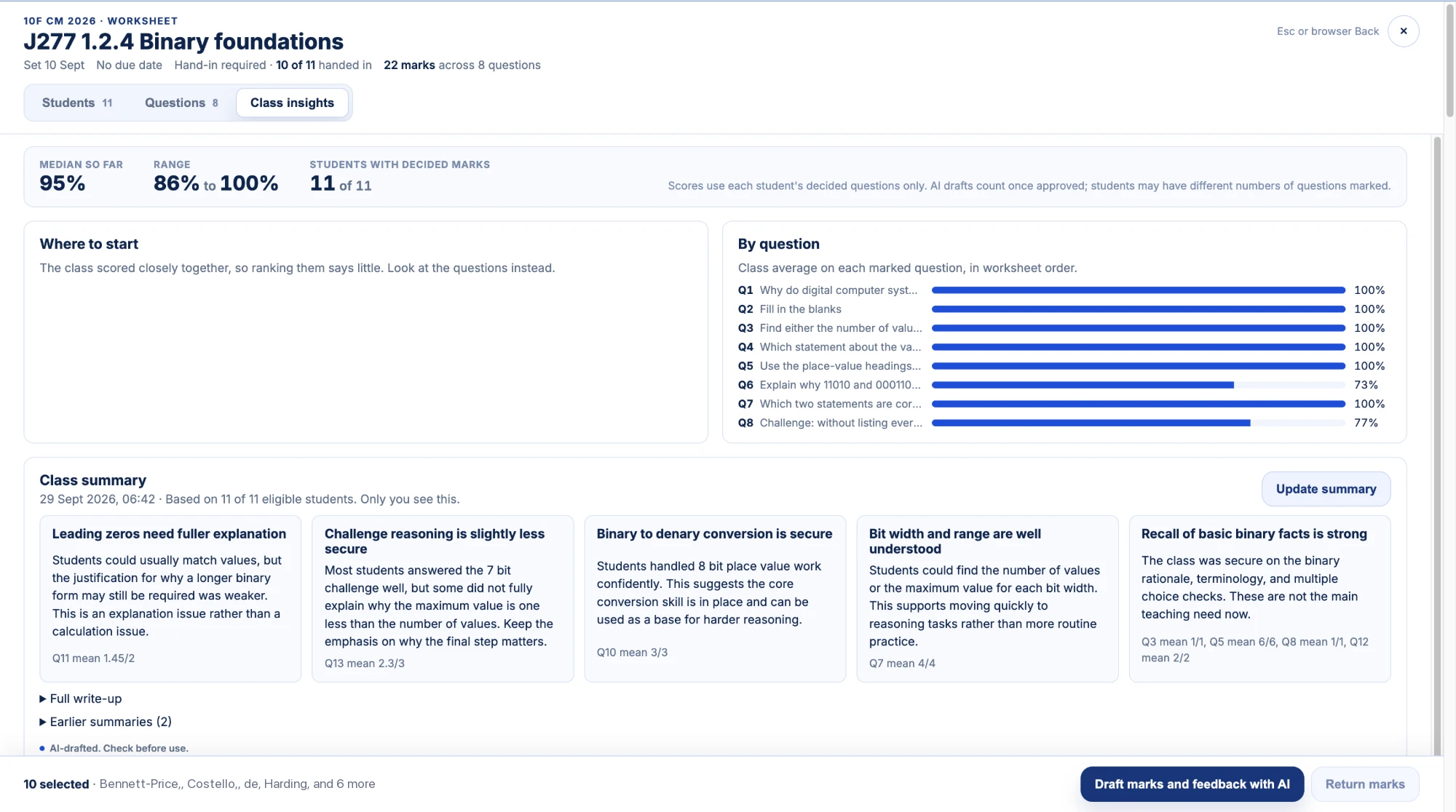
The class summary underneath is drafted by AI for you alone. Read a class summary and act on it explains how to use it to plan the next lesson.
Good to know
- Students never encounter AI anywhere on Coding Pathway. The AI drafts for you. What reaches a student is a mark and feedback their teacher approved and returned.
- Your decision always stands. A fresh draft never replaces a mark you have set.
- Drafts need marking guidance. A written question with no marking guidance is left for you to mark, and the dialog in step 3 tells you so. The Worksheets on the specification maps for OCR J277, Edexcel 1CP2 and OCR H446 carry marking guidance on every written question.