Review student code and leave feedback
Move through a class set of projects student by student, pin comments to exact lines, see what changed since yesterday, and award trophies. No files to collect.
Reviewing a class set of code used to mean collecting files or walking the room with a notepad. The review workspace replaces both.
1. Open the work
From a lesson's Recipients view choose Review projects, or open Workspaces and pick a student. You see their actual workspace: code, output, and their view of the instructions.
2. Move through the class
The arrows in the header (or your keyboard) take you student to student in seconds. Each student's code, last-active time, and hand-in status are right there. Reviewing a whole class set in one free period is realistic.
3. See what actually changed
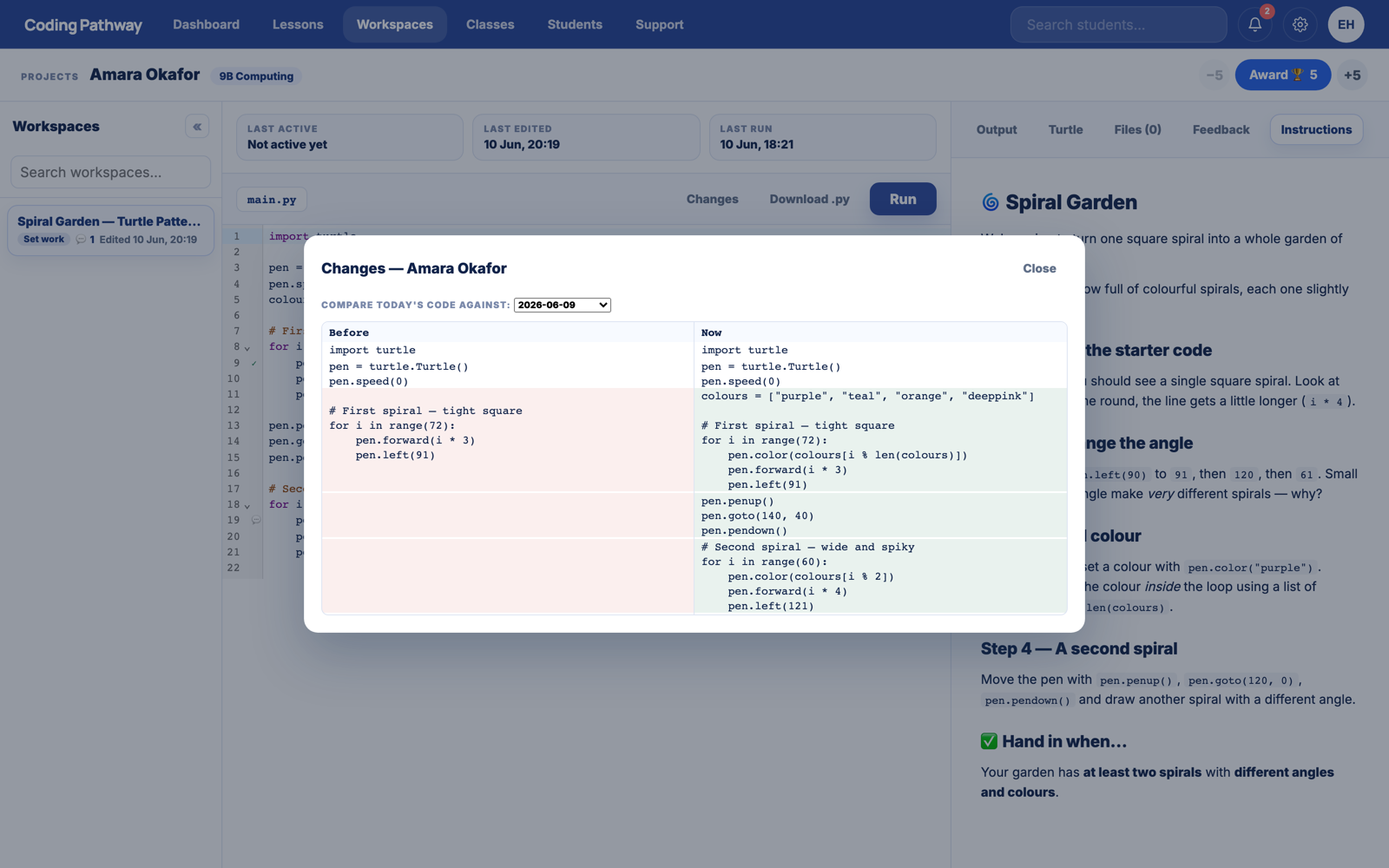
The Changes view compares today's code against the student's earlier version, so you can see what they actually did since yesterday. Useful for the "I did loads, it just doesn't run yet" conversation, and for spotting work that arrived suspiciously complete.
4. Leave feedback they will actually see
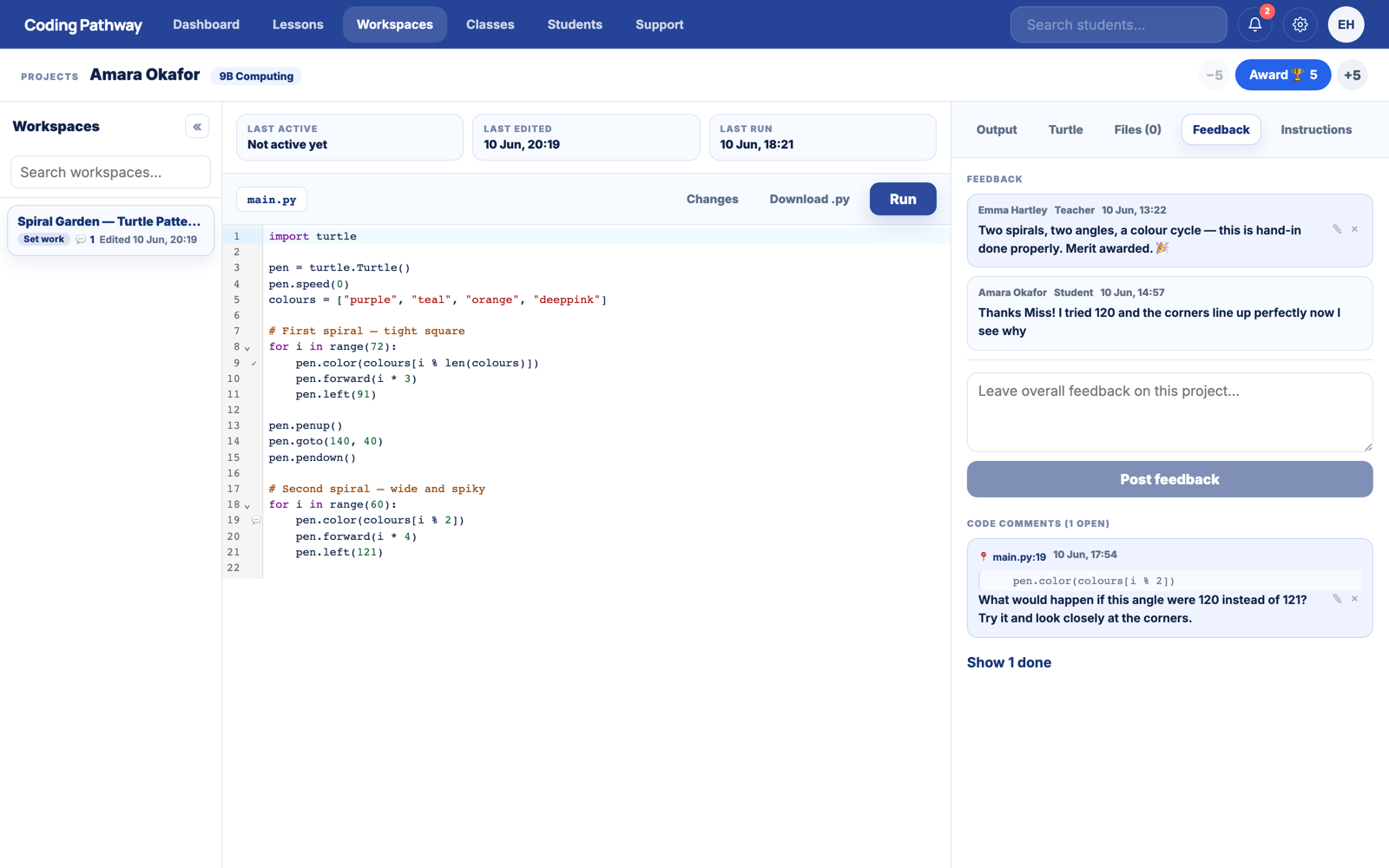
Two kinds, both visible to the student the next time they open the project:
- Project feedback: a comment on the whole piece. Students can reply, so it becomes a conversation rather than a verdict.
- Inline comments: click a line of code and pin your comment to it. "Look at line 7" becomes a note that lives on line 7.
Students can mark a comment as done, so you can see who has engaged with feedback and who has not.
5. Award trophies for good work
The Award control sits in the header. When a student's work or effort deserves it, give trophies on the spot, in one tap, without leaving the review. Awards count toward the student's total and show up on their record.