Python sketches and animation, inside your Worksheets
Put an interactive Python sketch beside explanations and questions, so students can change the code, see what happens and explain their thinking in the same lesson.
You can now put a Python drawing or animation inside a Worksheet, alongside the explanation and questions for the lesson. Each student gets their own copy of the code to change and run, and you can review their code and written answers together.
Python sketches have been available in Workspaces since June. Bringing them into Worksheets lets you build a lesson around a worked example, with smaller tasks and questions as students develop their own version.
Give students something to investigate
A weather animation is one example: use a list to hold raindrops, a loop to move them and a condition to return each drop to the top. Ask students to predict what changing a variable will do, run it, then explain the result underneath.
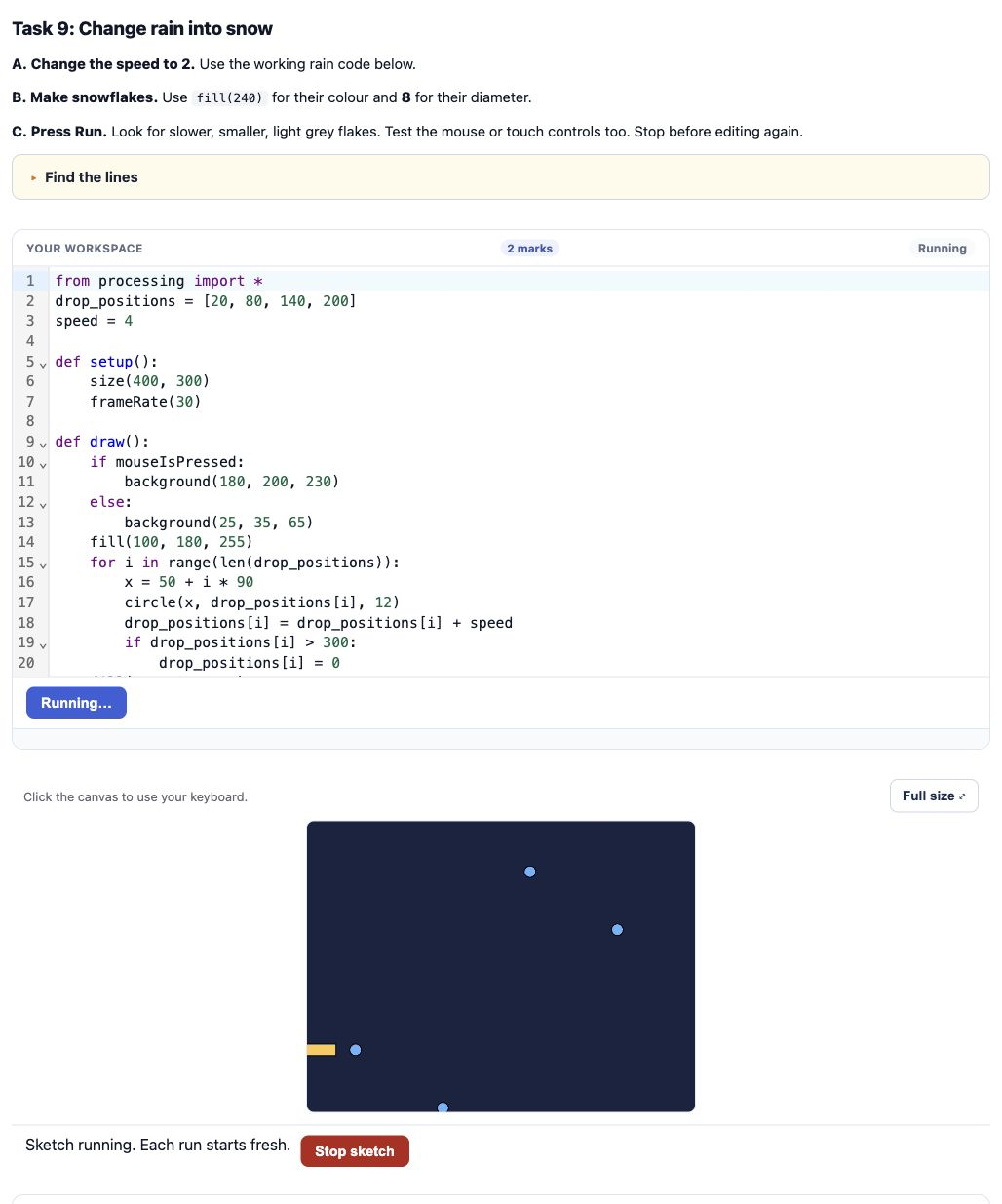
For older students, several objects moving independently on the canvas can give you a way into classes, attributes and methods. The Worksheet can ask students to trace one object's state or explain why changing it leaves the others unaffected.
Ask students to explain a change as well as make it: why does a drop return to the top, or why do two objects move at different speeds? Their answers give you something specific to follow up when you review the code.
Add a sketch to a Worksheet
When authoring, add a Python code cell and choose Python Processing sketch mode. Put your starter code there, then add the questions or tasks you want students to work through.
Use sketches for practice or teacher-reviewed tasks. They aren't automatically marked for correctness, so include marking guidance if you want to award marks for the code.