The IDE built for AfL: live coding, student handover and tasks
Model code on students’ screens, then hand control to a student to show you and the class. Set tasks inside the code, review their work and return feedback, with Python, JavaScript and web projects in one IDE.
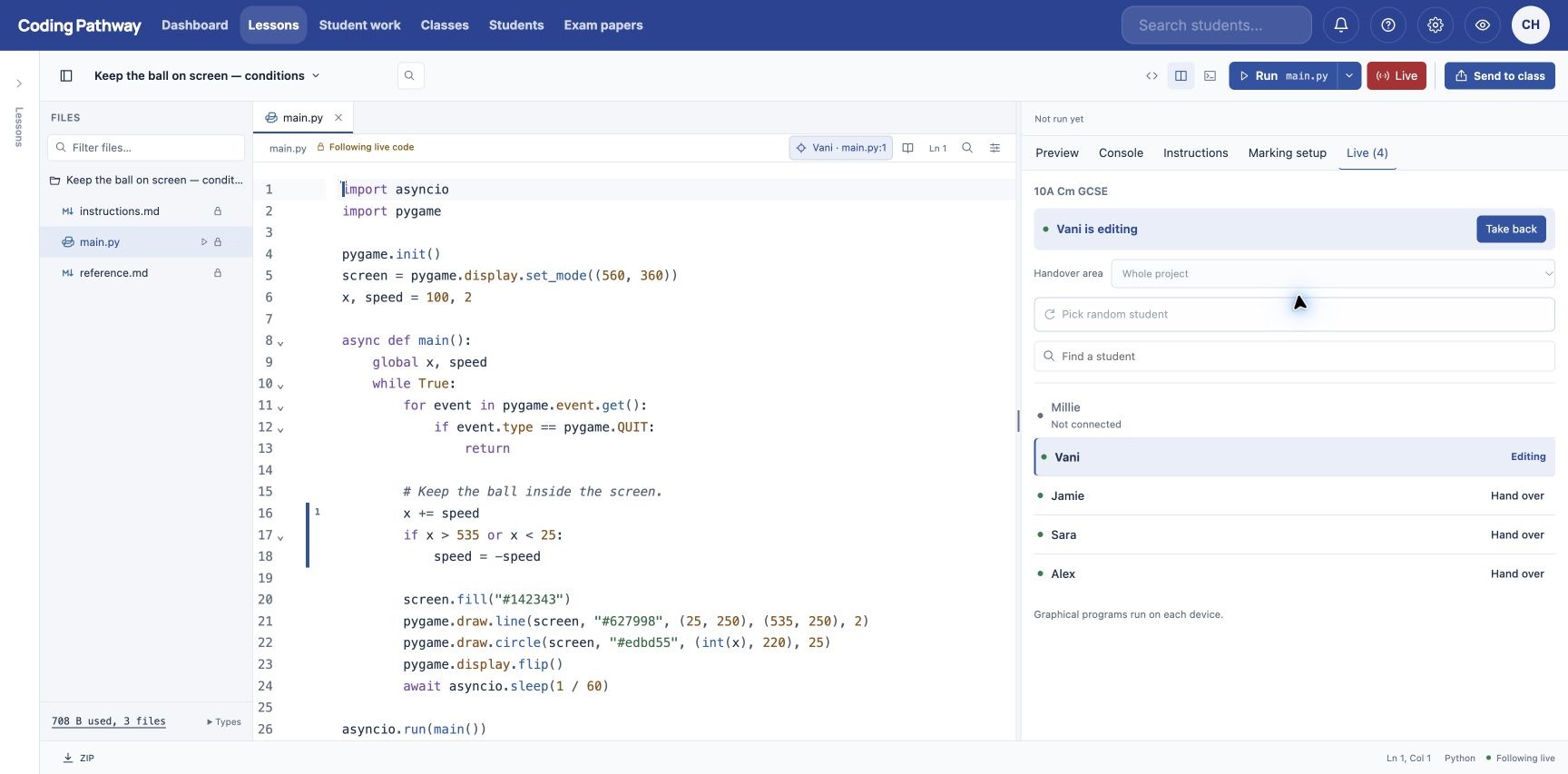
“Don’t tell us, show us.”
When modelling code, we ask students what comes next, where the mistake is or how they would solve a problem. Coding Pathway’s live classroom tools let you hand over so they can show you and the whole class, editing the code from their own device.
Alongside live lessons, the upgraded IDE brings tasks inside the code, marking and returned feedback, version history and more languages and libraries.
Go live. Let the class follow.
Open a new or existing teacher project and go live to your class or school. Students click Watch to follow your modelling on their own screens. They can see where you are working and run the code themselves.
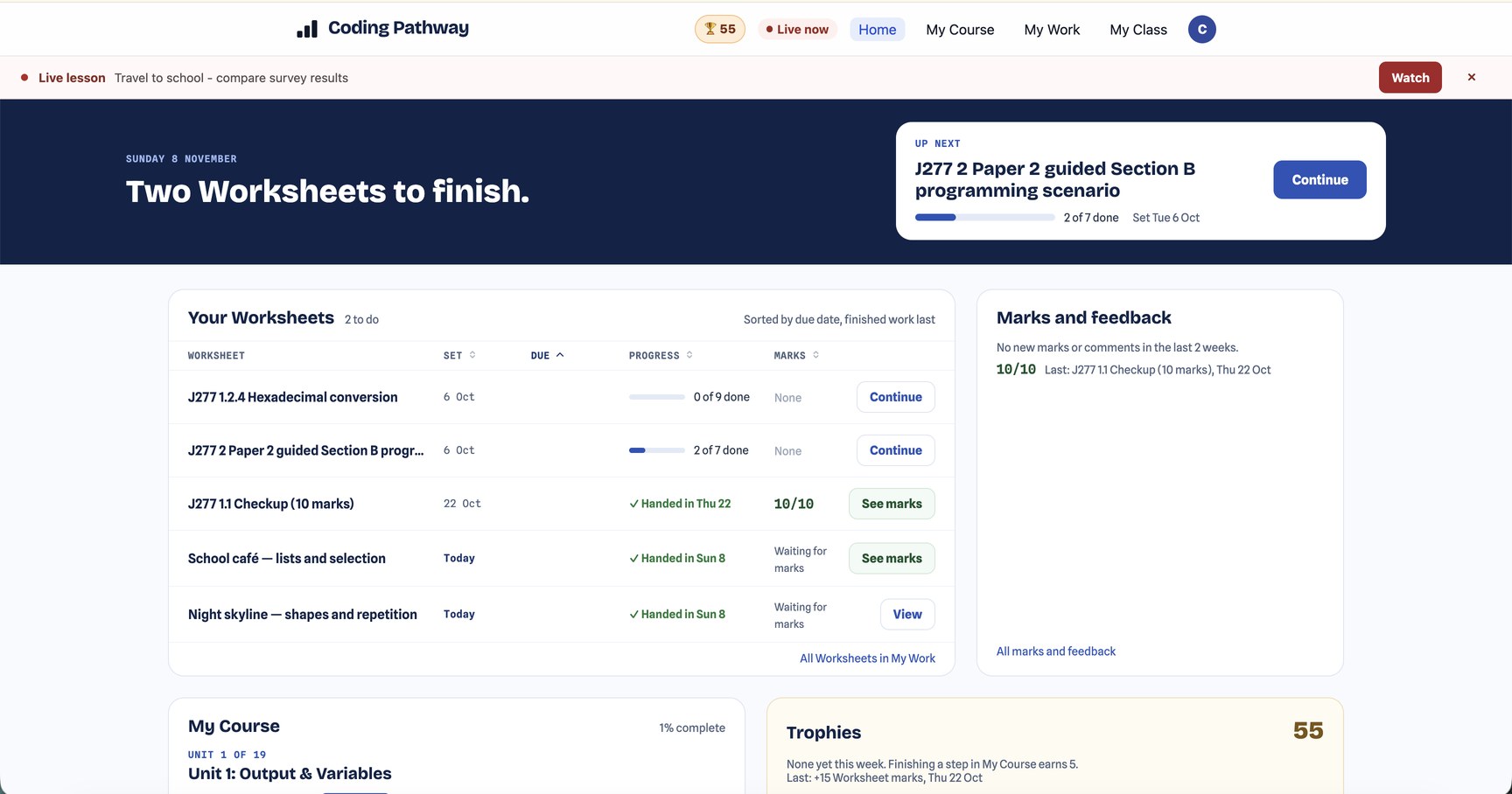
Choose a student yourself or pick at random, then hand over. Ask them to correct a condition, complete a function or try another approach. Everyone sees the changes, giving you and the class something to run, question and discuss.
Hand over the whole workspace or just one task area, keeping the surrounding code protected. Take control back whenever you need to, and revert the student’s changes if needed.
Set tasks inside the code
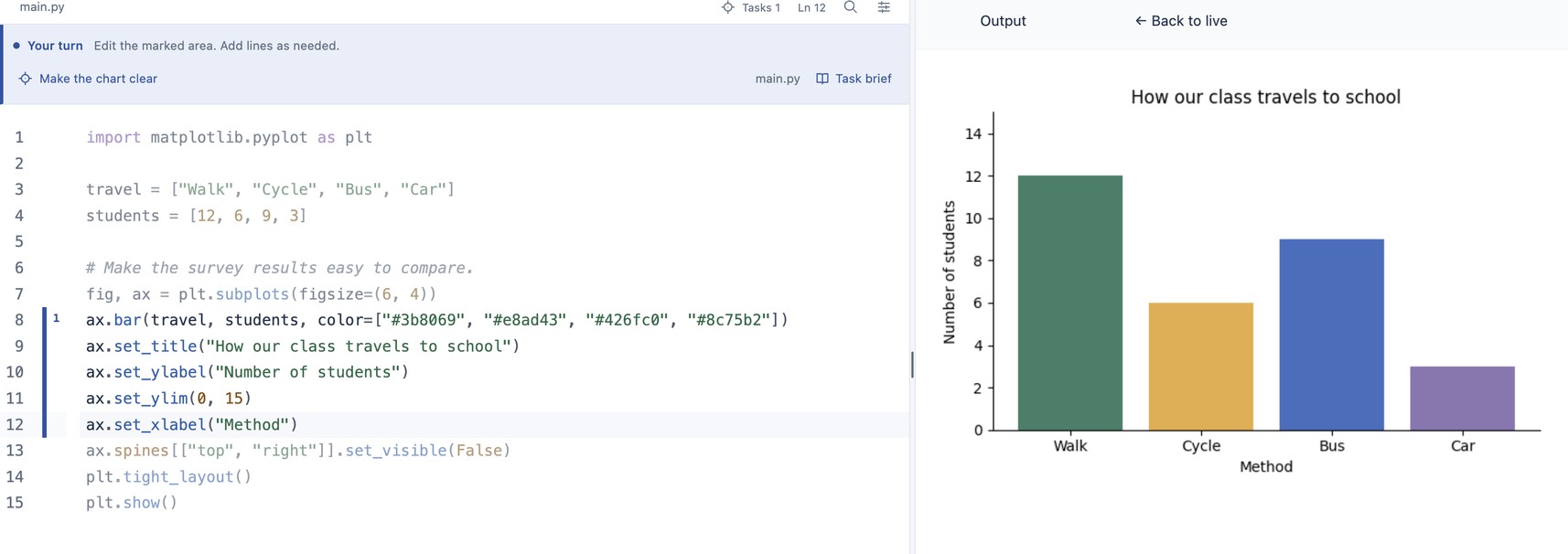
Highlight the lines you want students to work on, blank or with starter code, and write the task instructions. Prepare several tasks for a lesson: complete a loop, add a function or change how a web page looks.
Students work in their own copies, with instructions beside the relevant code and room to add lines. During modelling, you can hand over one of those same task areas to a student.
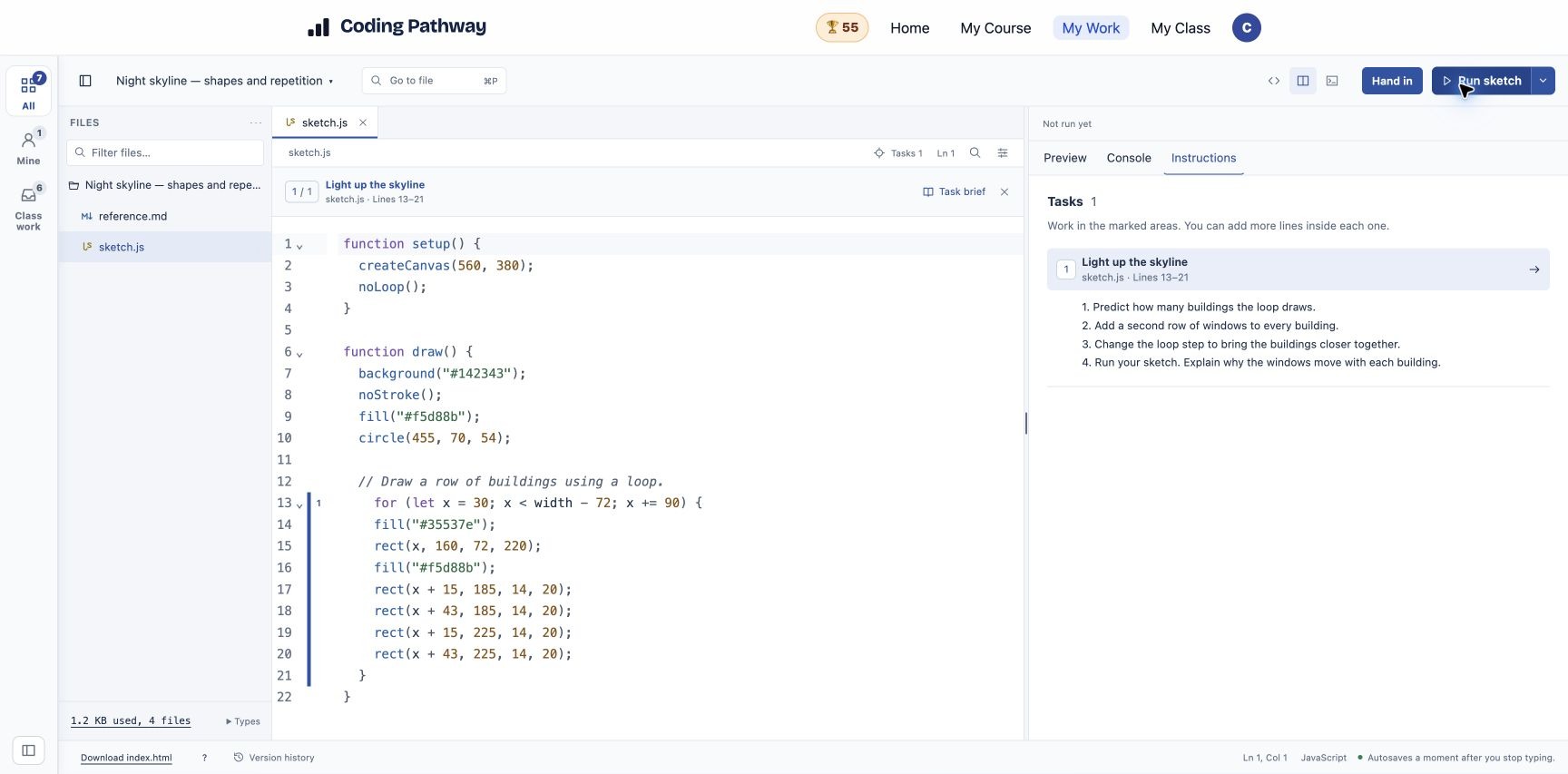
The Instructions tab keeps the lesson brief and task navigation available throughout. Add a formatted instructions.md file for the steps, examples and reminders students need while they work.
Mark the work and return feedback
Open a student’s workspace, run the code and assess the whole project or individual tasks. Add comments to particular lines, record marks where appropriate and return feedback for students to read alongside their work.
For assessed work, teacher AI tools can draft marks and feedback on hand-in against your marking guidance. You check, edit and approve before returning anything. There is no student-facing AI.
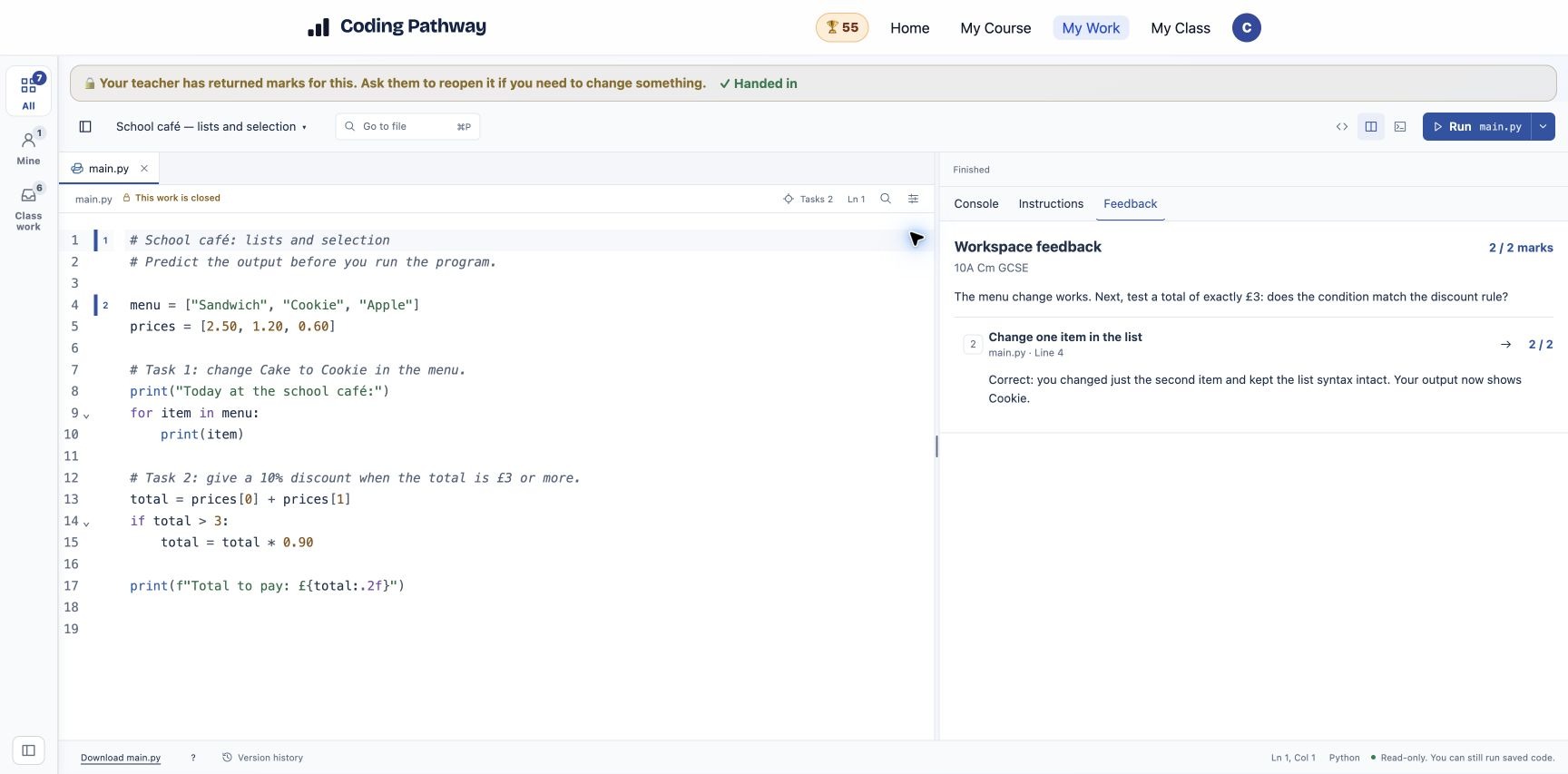
Marks feed into the class Progress Matrix and student records, so workspace lessons sit alongside the rest of your assessment. Version history lets you compare earlier code and talk through how a solution developed; students can also browse their saved versions.
From a first web page to a larger project
Students can write and run Python and JavaScript, or build web pages with HTML, CSS and JavaScript and preview them inside the IDE. Light and dark modes are available.
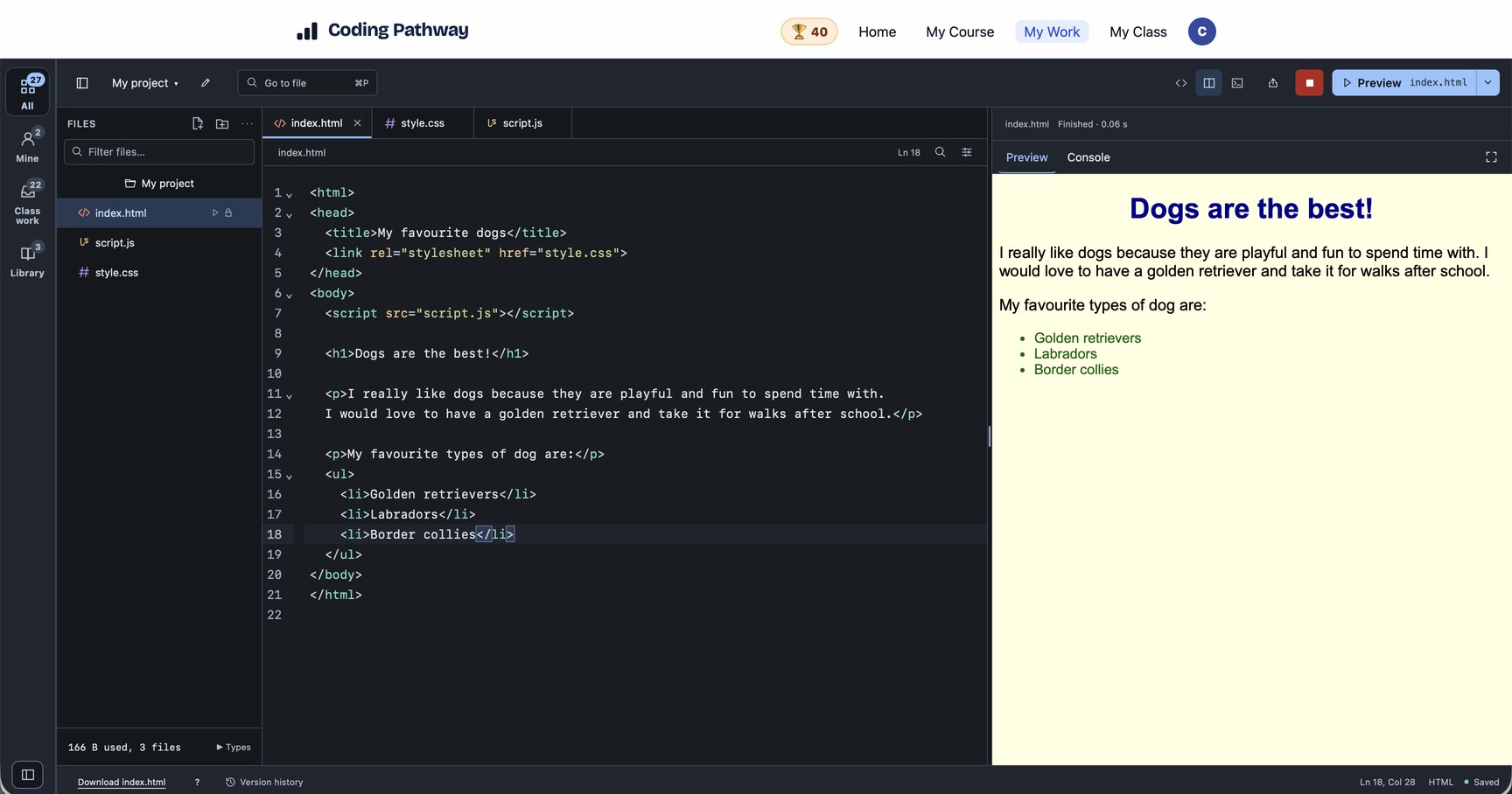
File tabs, folders and a searchable explorer support projects with several files. Upload code, images and data, keep reference material with the project and download everything as a ZIP.
Starting projects include Turtle and Processing for Python graphics, p5.js for JavaScript sketches, Pygame and Pygame Zero for games, and pandas, Matplotlib and SQLite for data work. Supported languages and libraries run in the browser, with nothing to install.
Use it with your classes
IDE projects sit alongside interactive Worksheets, exam questions and the step-by-step Python course. Set lessons and homework, review the work and follow progress without collecting code from separate tools.
Already using Coding Pathway? Open Lessons, create or open a project, and try adding a task or starting a live session. Live classroom tools are available to schools with an active subscription or trial.
Getting started? Create your school for a two-week trial of the teaching tools. The demo and interactive walkthrough lets you explore the wider platform without signing in; try live handover with connected students in your own school.
See more IDE examples, or get in touch with questions, feedback or if you’d like a hand getting started.