On this page
Use Exam papers to assemble practice for a lesson, homework or a test. The bank contains original exam-style questions, not official past papers. Exam papers require an active school subscription or trial.
Create a paper and find questions
Open Exam papers and choose New paper. Select your qualification and name the paper. To adapt a complete paper, choose one under Ready-made papers where available. For a paper shared by a colleague, Make a copy gives you an editable version.
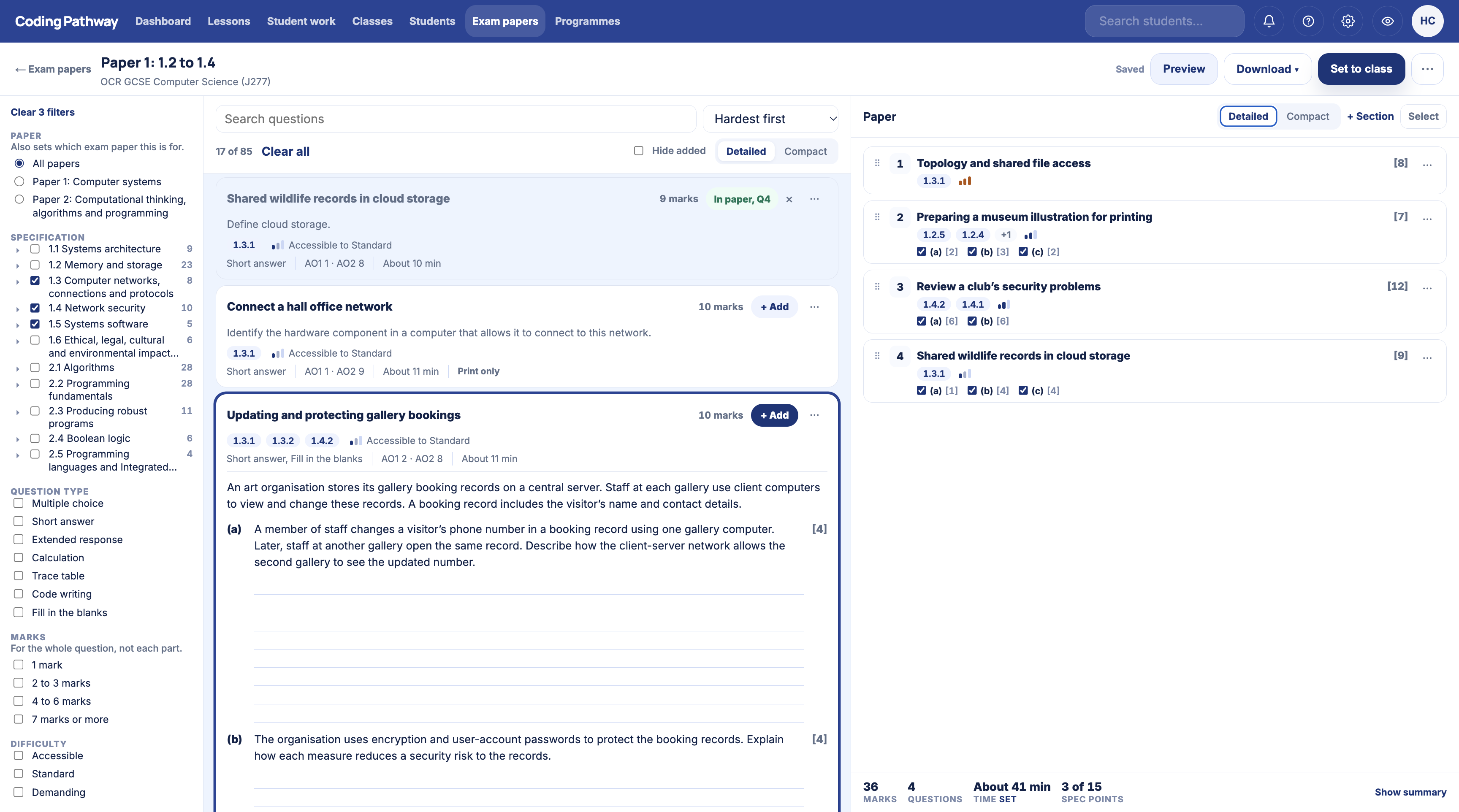
Use the bank's search and filters to narrow the questions by specification topic, paper, question type, marks or difficulty. Open a question to read its parts and marking guidance before adding it.
For a fresh end-of-topic test, choose the Class in the bank filters and select Hide questions they have seen. This uses questions previously set on screen or recorded as used on paper with those students.
Choose + Add to put a question into your paper. The bank identifies questions already included so you can keep track while browsing.
 Enlarge image
Arrange and check the paper
Review the questions in the Paper panel. Arrange their order and use sections where helpful. Switch between Detailed and Compact views to inspect the question parts or see the overall structure.
Check the marks total, estimated time and specification coverage. The time is an estimate: allow for your class and how you intend to use the work.
For an on-screen assessment, check for Print only before finalising your selection. Omit a print-only part, or remove the question if the whole question is print-only. You can keep these questions and parts when printing.
Preview the finished pages
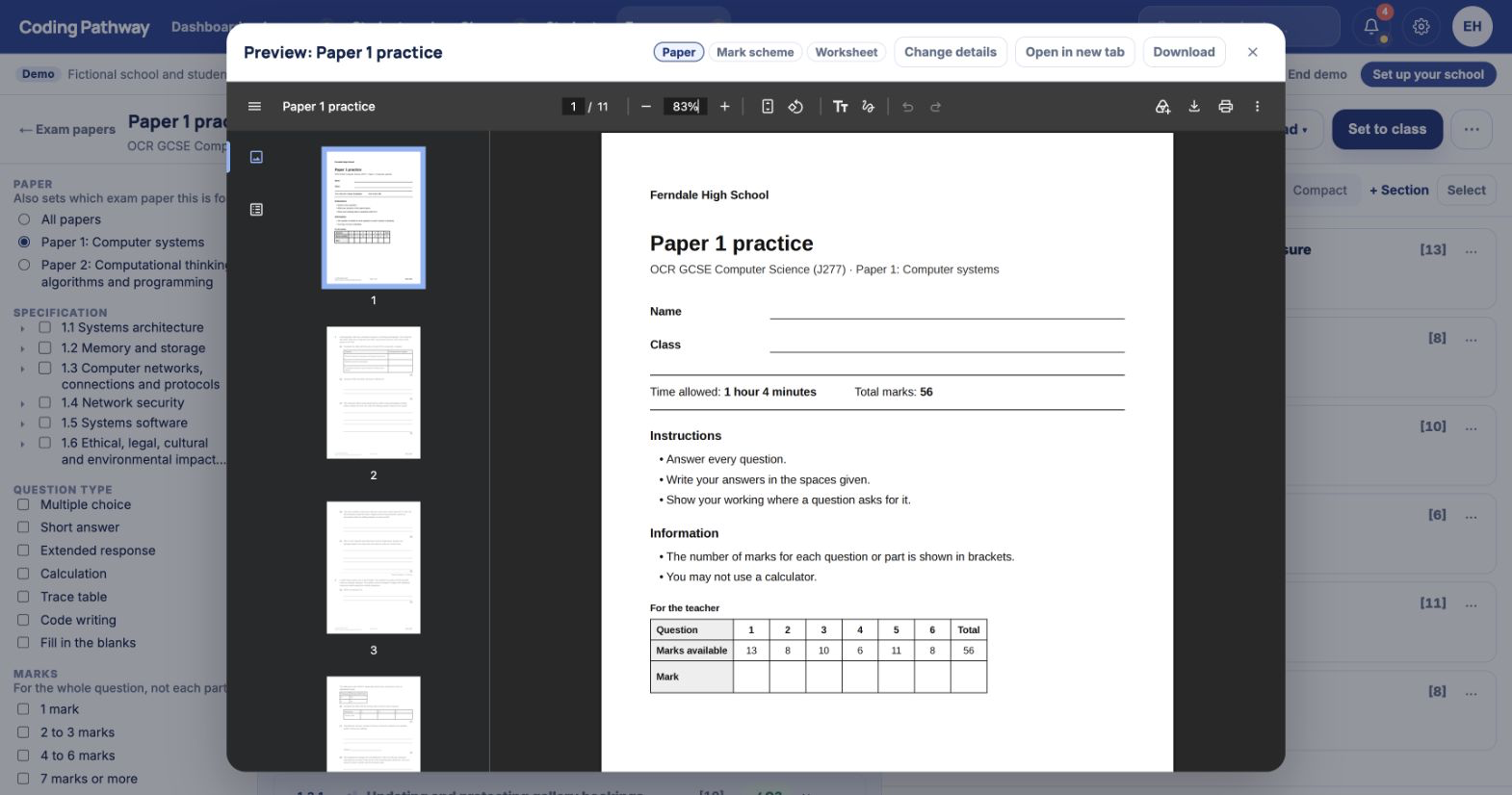
Choose Preview and inspect both the question paper and mark scheme. Use Change details to adjust the paper details, then check the page layout and any instructions before downloading.
 Enlarge image
Download the files
Open Download and choose the output you need:
- Download paper (PDF) for the questions.
- Download mark scheme (PDF) for marking guidance.
- Download paper and files (ZIP) where supporting files are available, including Python and data files for relevant Edexcel Paper 2 questions.
The ZIP contains the question paper and student files. Download the mark scheme separately for teachers.
Record a printed test
To keep track of which questions students have seen, choose Record use with a class… from the paper menu. Select the class and the date you used the paper.
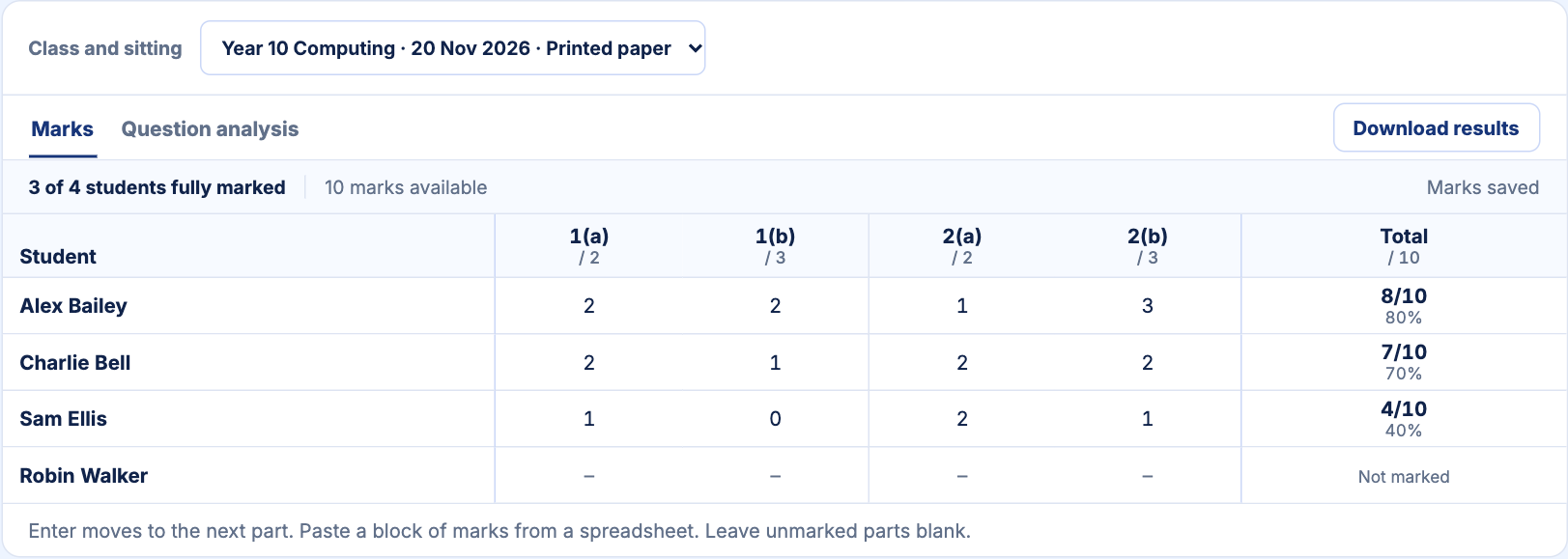
If your saved paper has a Results button, you can also record how students did. Choose Results → Record printed marks. Select the class and Date sat, then Open mark sheet. Enter the marks for each question part. Leave a mark blank if you have yet to enter it. Enter zero if the student earned no marks. Wait for Marks saved before leaving. Question analysis shows how the class did on each part.
 Enlarge image
To collect answers and return feedback on Coding Pathway, follow set exam questions to a class.