On this page
Start with one of your papers in Exam papers. For a paper shared by a colleague, choose Make a copy to set your own version. You can set a short selection of questions for practice; it does not need to be a full exam. See build an exam paper if you have not chosen your questions yet.
Check that the paper can be set online
Review any Print only labels and the message beside Set to class. Some questions or papers cannot be converted for on-screen completion. A paper that is too long needs splitting into smaller papers, or downloading to print.
Choose Preview → Worksheet to read the questions as your students will see them. For eligible programming questions, Code questions lets you choose Written answer or Python cell. Choose a Python cell when students should edit and run their solution. Code execution is available in the lesson itself; the builder preview is for reading.
Create the Worksheet and send it
- Wait for the paper to save.
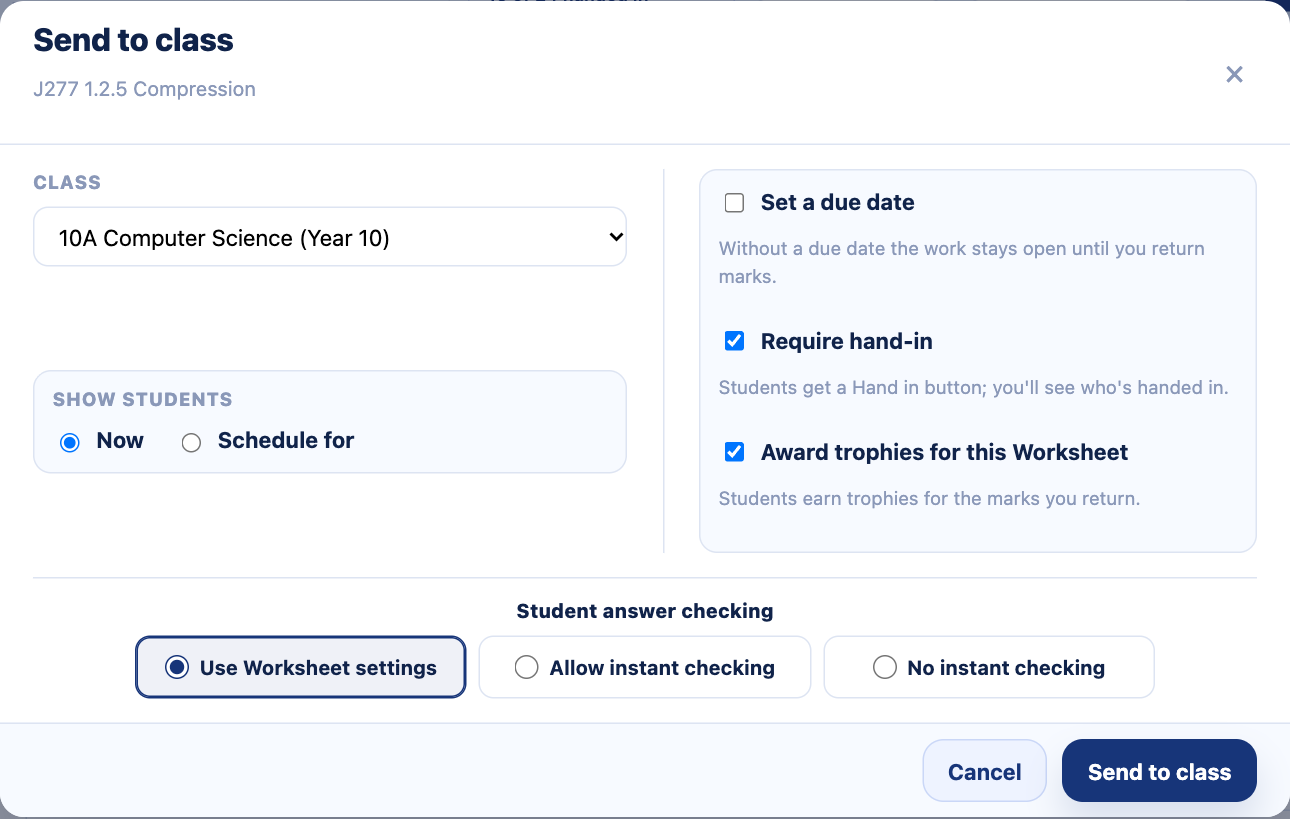
- Choose Set to class. Coding Pathway opens the send window on the linked Worksheet in Lessons, creating it first if needed.
- Choose the class, release time, due date and hand-in settings. For a test, choose No instant checking so students see marks when you return them.
- Confirm Send to class, or schedule the work for later.
 Enlarge image
The Worksheet setting guide explains these settings in detail.
Students complete their answers in their own copies. You can find the assigned work in Recently set work, alongside your other lessons.
Review, mark and return
Open the class's marking view to review answers. Automatic checks score supported question types. For written answers, teacher AI can draft marks and feedback using each question’s marking guidance if your school has it enabled.
Check, edit and approve drafts before returning marks and feedback. Students see the marks when you return them.
You can follow individual students’ results in the class progress matrix. If your saved paper has a Results button in Exam papers, choose it and select the class sitting. Question analysis shows the marks by question part. These results can include approved marks students have yet to receive. Choose Open class marking to change or return marks. See mark a Worksheet for a whole class for the full process.
If you change the paper later
The builder tracks whether its linked Worksheet still matches the paper. If the paper has changed, it may ask you to rebuild the Worksheet before setting it again.
Rebuild Worksheet replaces changes made in the Worksheet editor with the paper's content. Read the confirmation before continuing, especially if you adapted that Worksheet by hand. Rebuilding does not change work already set to classes.
If only the Worksheet was edited and the paper is unchanged, Set to class keeps those edits. To inspect the result afterwards, open the assignment in the class progress matrix.