On this page
Start with a Worksheet in Lessons and a class ready to receive it. If sending is unavailable, check your school’s teaching access.
Check the Worksheet
Open the lesson in Lessons and choose Preview to try the student activities. If you have written or changed questions, use Edit to check their answers and marks. Worksheet tools → Check worksheet helps you identify issues in work you have authored.
Copying a resource or editing a draft does not set it to a class. Choose Send to class when it is ready.
Choose the class and release time
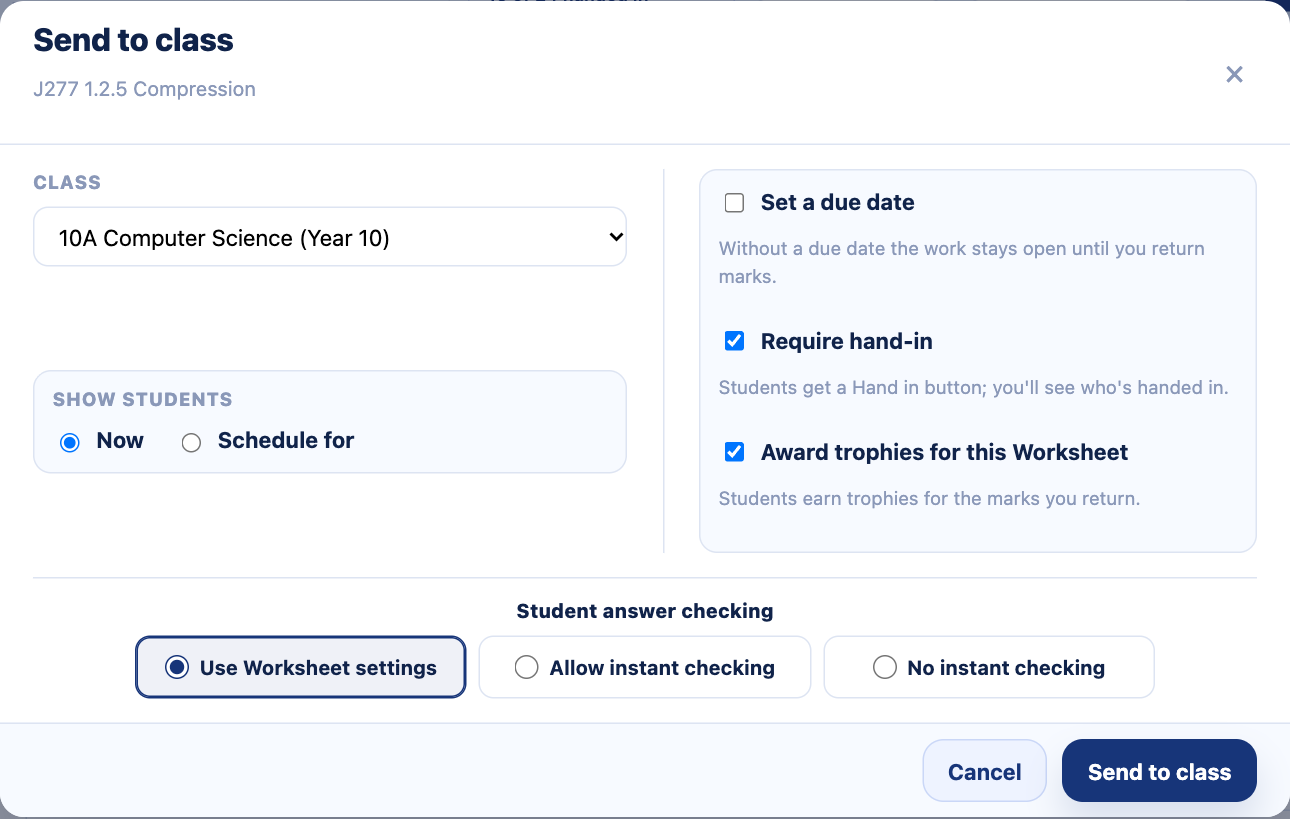
Select the class in the Send to class window. If you need a new teaching group, create a class and invite its students.
Under Show students, choose:
- Now to make the work available immediately.
- Schedule for to release it at a later date and time.
The release time uses your device’s local time.
Decide how students finish
 Enlarge image
- Set a due date if the work has a deadline.
- Require hand-in if students should press Hand in when they finish. You can still review saved answers before they hand in.
- Allow late hand-ins, where available, lets students continue after the deadline; late work is identified as late. Without this option, work becomes read-only at the deadline.
- Award trophies for this Worksheet controls whether returned marks can award trophies. Availability also depends on the school's trophy settings.
Without a due date, students can carry on until they hand in or you return marks. Returning marks makes that student's Worksheet read-only, so leave out students who still need to finish.
Choose when students can check answers
Under Student answer checking, choose Use Worksheet settings to keep each question’s settings. For practice, Allow instant checking lets students check supported answers as they go. For a test, No instant checking lets them save answers and run code while keeping marks and feedback for your return. Written responses still need marking.
Send or schedule
Check the class and settings, then select Send to class or Schedule for class. Students receive their own copies when the work becomes available.
Open Recently set work and select the assignment. You can see saved answers, hand-in status and marking progress.
If the class already has the Worksheet
If the class already has this lesson, the action changes to Update class copy. Check the list of answered cells that have changed. Existing responses are kept. Changes to questions or marking guidance need particular care: review the affected work rather than assuming the original marks still apply.
If a student is missing the assignment, check its release time and their class membership. For reviewing and returning the work, follow mark a Worksheet for a whole class.