On this page
Check whether another student in the same class can open the assignment. If they can, check the missing student’s account and class. If nobody can open it, check what was sent and when. If the work opens but students cannot change their answers, check why it is read-only.
One student is missing the assignment
- Open Classes, choose the class you sent the work to and find the student under Students. Ask them to check that they’re signed in with the same school account.
- If their name is missing, check Review request or Review requests on the class page. Choose Approve beside the right student. If they have yet to request access, choose Copy join link and send it to them. Once approved, their name appears under Students.
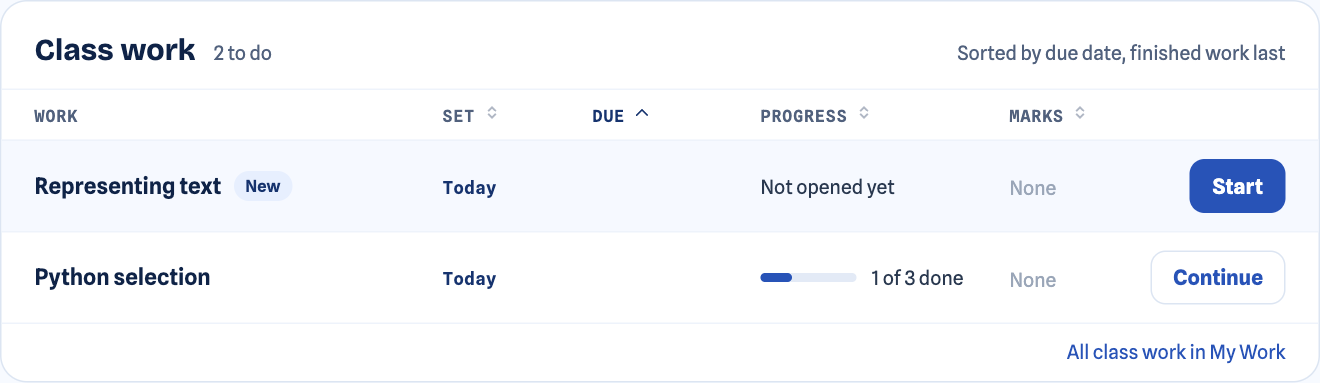
- On the student’s Home, find Class work and look for the assignment title. If Up next shows something else, choose All class work in My Work. Ask the student to open the assignment so you can confirm they have their copy.
 Enlarge image
The whole class is missing a Worksheet or Workspace
Open Recently set work. Look for the lesson title and check which class received it. For scheduled work, check the release time using the local time on the device you set it from. Ask students to open Home → Class work after that time.
If the lesson is only in your library, send the Worksheet or send the Workspace to the class. A live demonstration lets students watch the shared editor. Sending the Workspace gives them individual copies for independent work.
They are looking for a trophy goal
On student Home, look under Trophy goals. If another student can see the goal, open the class Progress matrix → Set work and check the missing student’s cell in the goal column. Not assigned means the goal was not set for that student. Check the goal and its recipients before setting another.
They can see the work but can’t edit it
In Classes → Progress matrix → Set work, open the student’s cell for this assignment. The panel explains why their copy is read-only. After hand-in or a return of marks, choose Reopen for student if they need to carry on. Check that you’re reopening the intended copy. If the deadline has passed and late hand-ins are off, move the due date or allow late hand-ins before reopening.
If the work is still missing
If the student belongs to the intended class and the release time has passed, contact support before sending another copy. Include the class, lesson title, release time and whether other students can open it.