Create a lesson and share it
Write instructions and starter code once. Share it with your class as a resource they can return to any time, or with any teacher anywhere via a link.
A lesson is a workspace you design: starter code plus instructions. Students receive their own editable copy and build on it. This is the main way teachers run project work on Coding Pathway.
Start from an example if you like
Two ready-made lessons are open for any signed-in teacher to try:
Open one and copy it into your own lesson library. From there you can edit it, set it to your classes as a resource, or model it live, exactly as if you had written it yourself. They are also a good way to see how finished lesson instructions are put together before you write your own.
1. Create the lesson
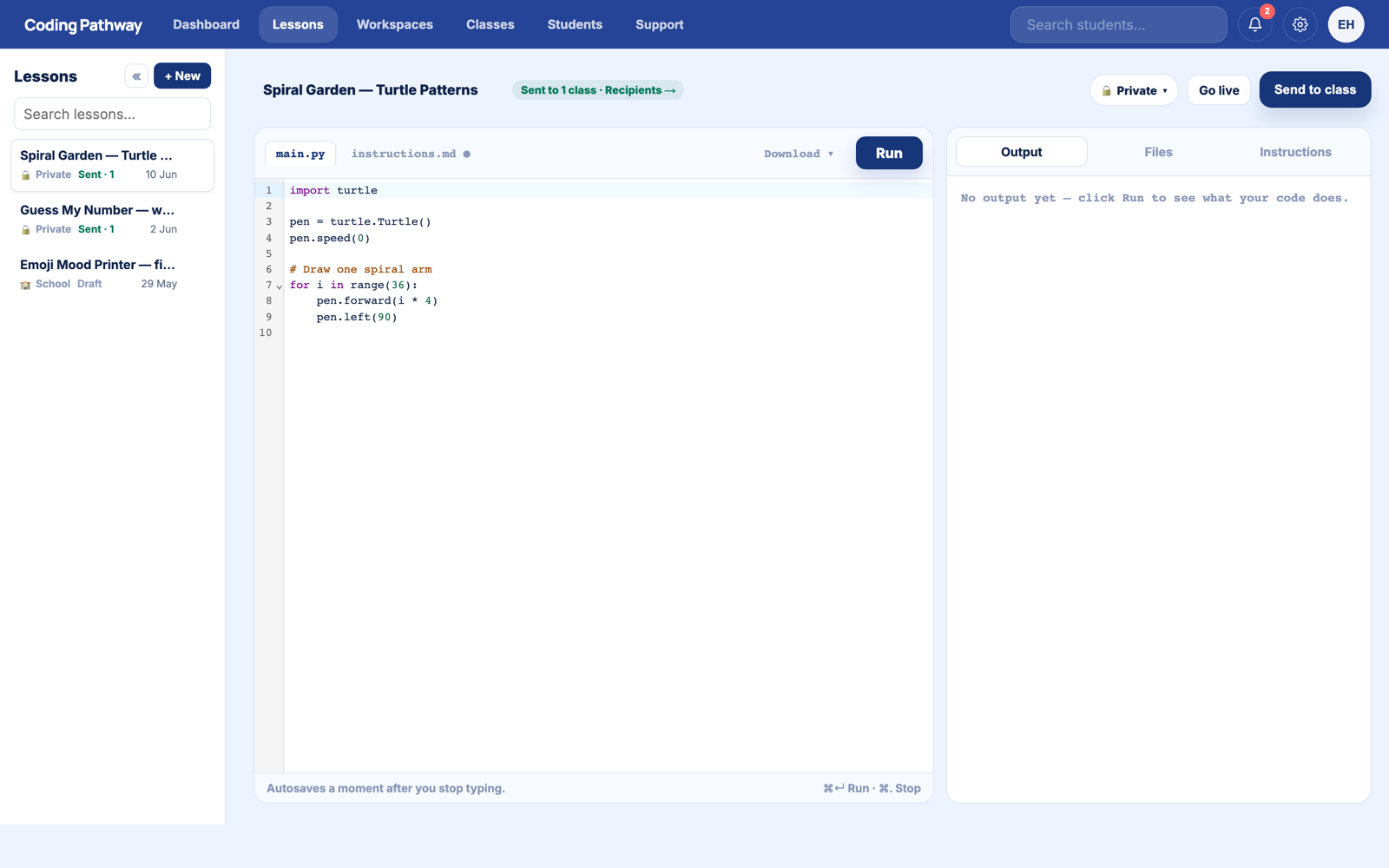
Go to Lessons and choose + New. You get a split view: your code on the left, with tabs for output and instructions on the right.
Write the starter code students will begin from. Enough to run, not enough to finish. Then write the instructions in the instructions tab: the goal, the steps, and what done looks like. Markdown formatting works, and collapsible hint sections keep help available without giving the game away. You can also attach data files, so a CSV sits ready next to the starter code for data work.
2. Let the AI tools do the boring part
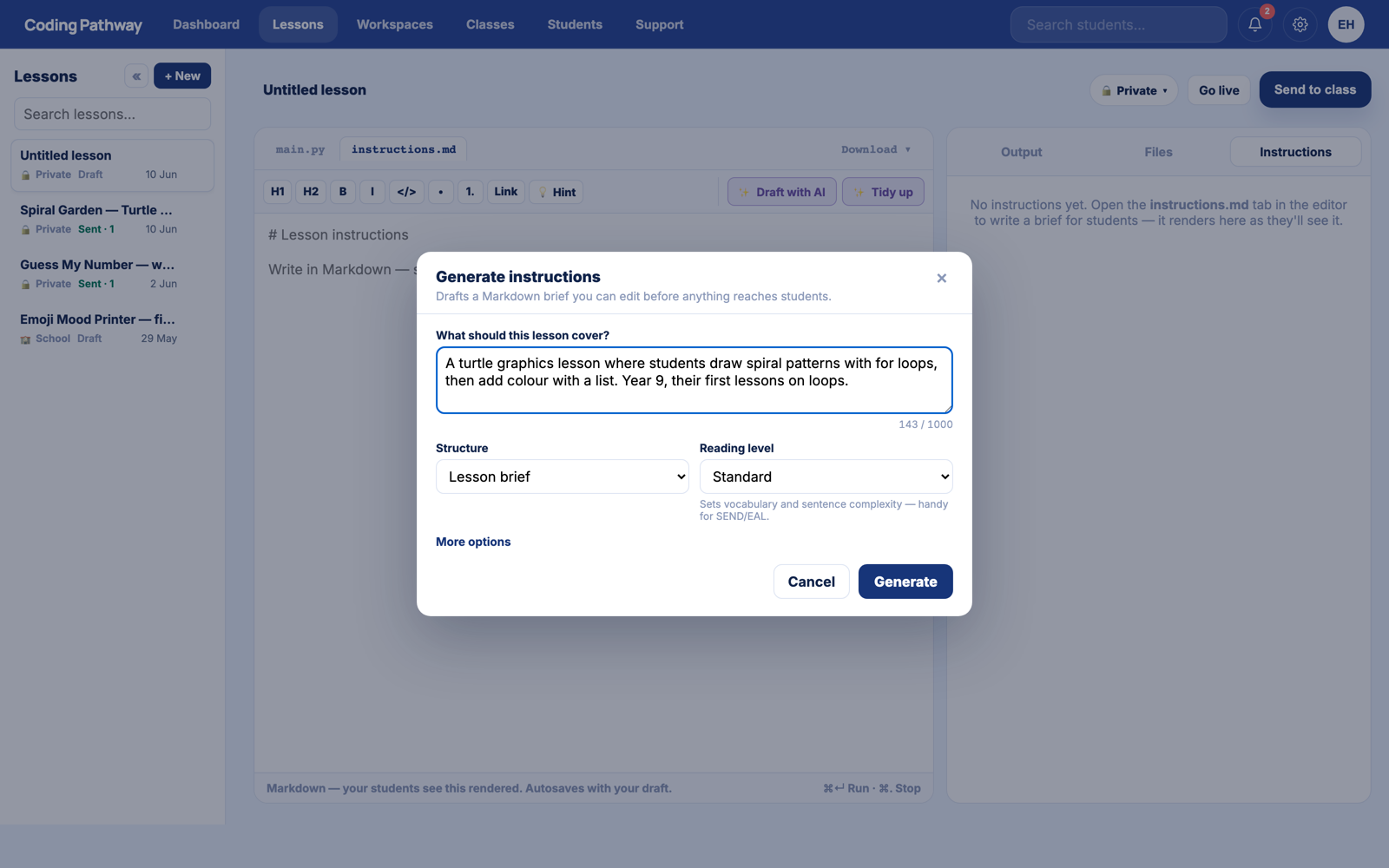
Writing good instructions is the slow bit, and there are two staff-only AI tools for it:
- Tidy takes whatever you paste in, including an old worksheet or a task description from your existing scheme of work, and turns it into clean, well-structured lesson instructions.
- Generate drafts instructions from what the lesson needs, including exam-style scenarios.
You review and edit before anything reaches a student. Students never see AI on the platform.
3. Share it with your class
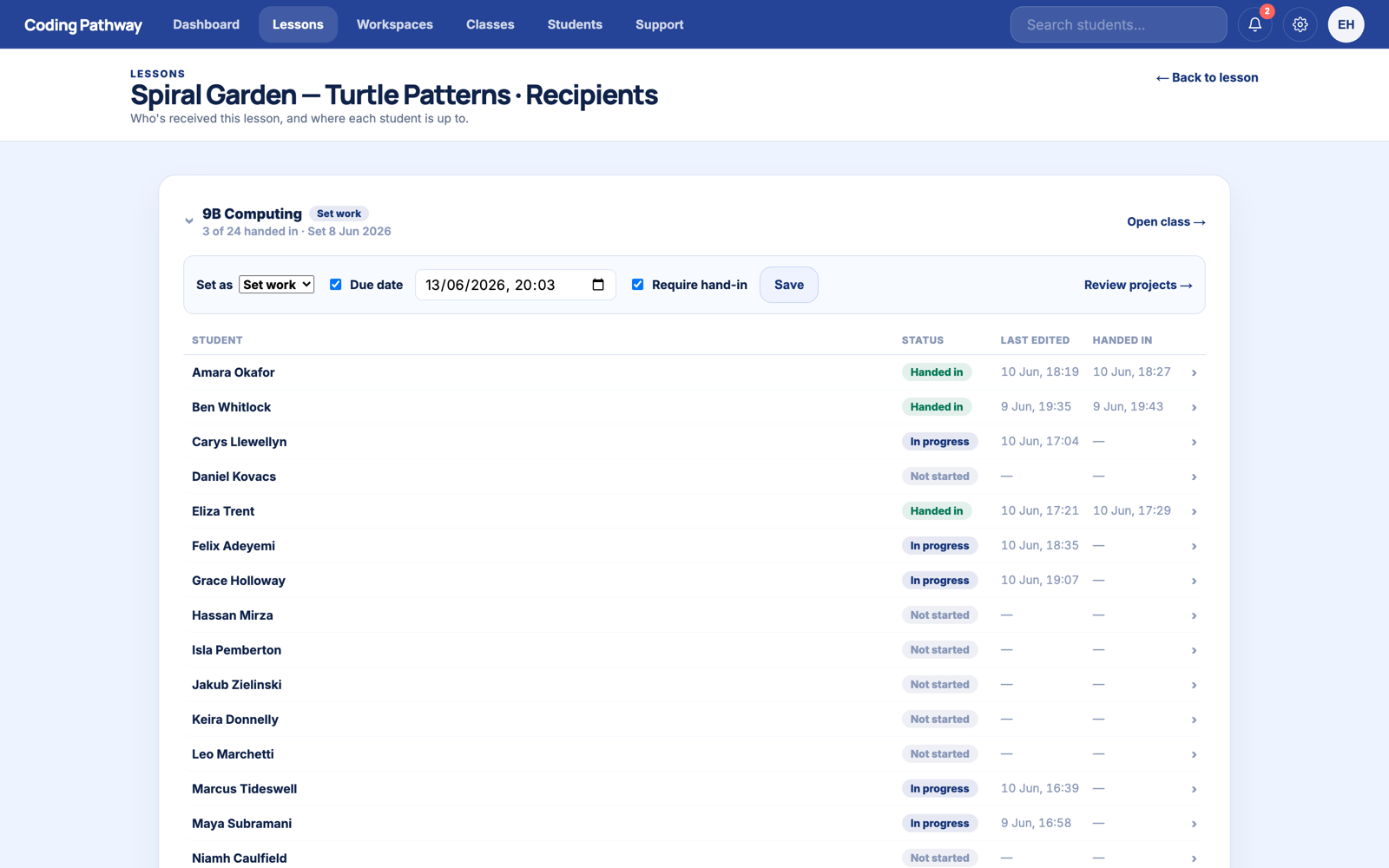
Choose Send to class. For most lessons, set it as a resource: it appears in each student's projects area and they can work on it, leave it, and come back to it any time. If a piece of work genuinely needs a deadline, set it as work instead, with a due date and hand-in. The Recipients view then shows you who has started, who is in progress, and who has handed in.
4. Share it with anyone
Every lesson can be shared by link, the way Trinket links worked. Paste it into a worksheet, a slide deck, or a teaching community, and any teacher who opens it can copy the lesson into their own library for their own classes. Within your school, colleagues can pick up your lessons directly. Write the good version once and it travels.
When the work starts coming in, see reviewing student code.