On this page
Open School settings from the teacher top bar. Check the name under Current school before changing access or sharing. Some controls are available only to teachers with permission to manage the school.
Check who can teach in your school
Under Teacher access, review colleagues and pending requests. Invite a colleague with a single-use teacher link, then approve their request here. For a student, use the class join link instead.
Review AI and sharing
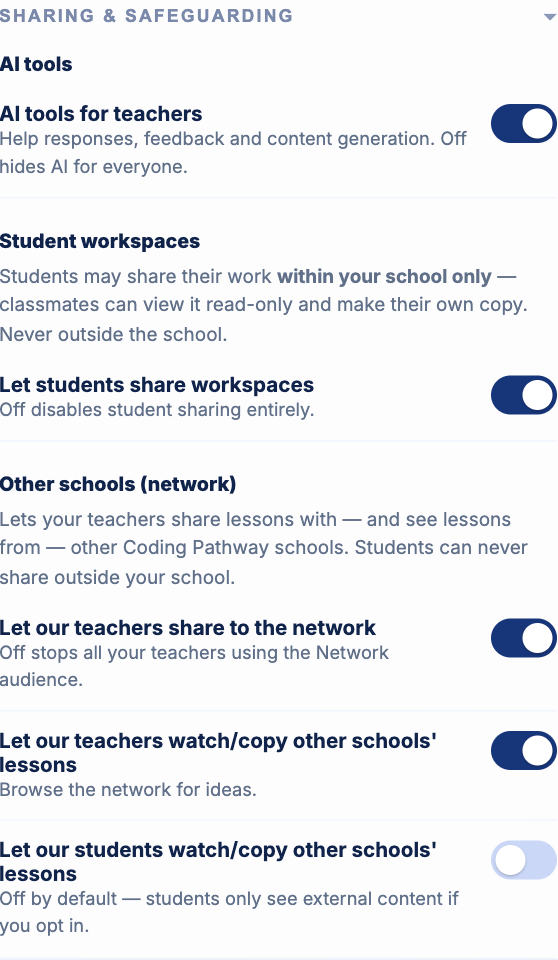
Open Sharing & safeguarding. AI tools for teachers controls access to teacher assistance, including content generation and feedback. If a teacher cannot find the Worksheet generator, ask the school owner to check this setting, the school’s teaching access and its AI allowance under Subscription.
- Let students share workspaces lets classmates view a shared Workspace and make their own copy. Students can share only within your school.
- Other schools (network) has three switches. Choose whether your teachers can share lessons with other schools, whether your teachers can watch or copy other schools’ lessons, and whether your students can do so.
Each switch saves when you change it. If a setting is unavailable, ask your school owner.
 Enlarge image
Check subscription or class settings
Subscription shows the school’s access and usage. For seats, payment or invoices, see manage your school’s subscription.
For a particular teaching group, open Classes, choose the class and open Class settings. This is where to look for class-level choices such as help requests and leaderboard visibility.