On this page
This walkthrough uses the OCR J277 Images Worksheet. Follow it with any ready-made Worksheet on a topic your class is studying.
- Before the lesson: Get your class ready, or choose your Worksheet if your students are already enrolled.
- Once students have answered: Return the first feedback and find their results in the class progress matrix.
Get your class ready
Open your teaching group in Classes and compare Students with your register. If students are missing, invite them and review their join requests. If you have yet to join your department, set up or join your school first.
Choose your Worksheet
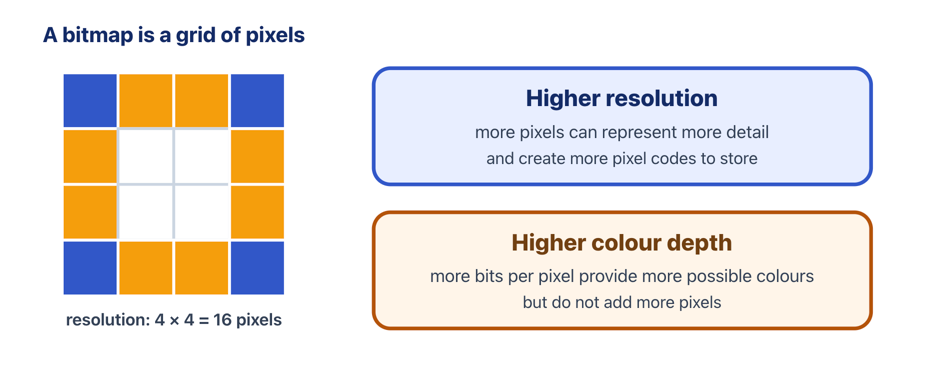
Open Lessons and choose + New → Community resources. Open your specification, expand the topic and preview a Worksheet. For example, for a Year 10 lesson on representing images, open Images in the OCR J277 map. Look at the diagram and first question to check where the lesson begins.
 Enlarge image
Choose Copy to my lessons, or Open in my lessons if you already have a copy. In Lessons, Preview lets you try the work. Choose Edit if you want to change an explanation or question before teaching it. Students receive the Worksheet when you send it to them.
Teaching something else? You can set Python course practice for homework, set a Workspace or build a Worksheet from your own materials.
Set the work and help students find it
- From your Worksheet, choose Send to class and select the intended class.
- Under Show students, choose Now for today’s lesson. Choose Require hand-in if you want students to tell you when they have finished. Check the due date if you use one.
- Confirm Send to class. In Recently set work, check the Worksheet title and class. A scheduled assignment becomes available at its release time.
If you’re preparing ahead, this is a good place to stop. At the start of the lesson, ask students to open the Worksheet from Home and answer the first question. They work in their own copies. If you asked for hand-in, have them choose Hand in when they finish. If someone cannot see it, check their access to the work.
Return the first feedback
Once students have worked on the questions, open Recently set work and choose the Worksheet you sent. You can read saved answers before hand-in. Check who has finished before returning marks, because returned work becomes read-only for that student.
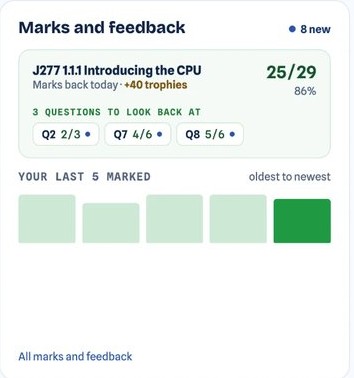
On Students, select a student who has finished. Open their work to check their answers and marks. Where an AI draft is available, read it against their answer, then edit or approve it. Choose the return action and check the students and marked answers included before confirming. On student Home, ask them to find the returned Worksheet and choose See marks or See feedback.
 Enlarge image
In Classes, open the class and choose Progress matrix → Set work. The new assignment has its own column. Open a student’s cell when you want to see the work behind the result.
If you’re preparing before your class has handed anything in, explore the demo school to try marking completed work. For your next lesson, see mark a Worksheet for a whole class.