On this page
Use Worksheet code cells when programming sits alongside explanations and other questions. To teach HTML, CSS or JavaScript, or work with a full file explorer, use a Workspace.
Choose what students can do
- Run-only: students run your example without changing it.
- Practice: students edit and run code.
- Checked answer: students complete a task and use the checks you prepare.
Worksheet code cells execute Python. A displayed code listing or trace-table algorithm is not necessarily executable Python: these can represent other examination languages without providing a runtime for them.
Build on an earlier cell
Ordinary Python cells share a running session within a Worksheet. For example, run this first:
scores = [4, 6, 8]
In the next cell, run:
print(sum(scores))
The output should be 18. If students run the second cell first, scores does not yet exist. Students run each cell themselves; there is no student Run all button. After Reset Python or reopening a session, rerun setup cells before dependent tasks. Saved code is not the same as saved variables in memory.
Checks use a separate fresh marking session. Do not rely on a student's earlier exploratory runs to make a checked answer pass. Prepare the required setup and test scenarios, then test the task from a fresh start.
Turtle and Processing
Turtle cells can continue a shared drawing or start fresh, according to the cell's setting. Make that choice explicit when students build a picture across several steps.
Python Processing sketches run fresh. A named shared sketch group rebuilds earlier cells in that group in order, using the student's current code. It does not carry the ordinary Python session into the sketch.
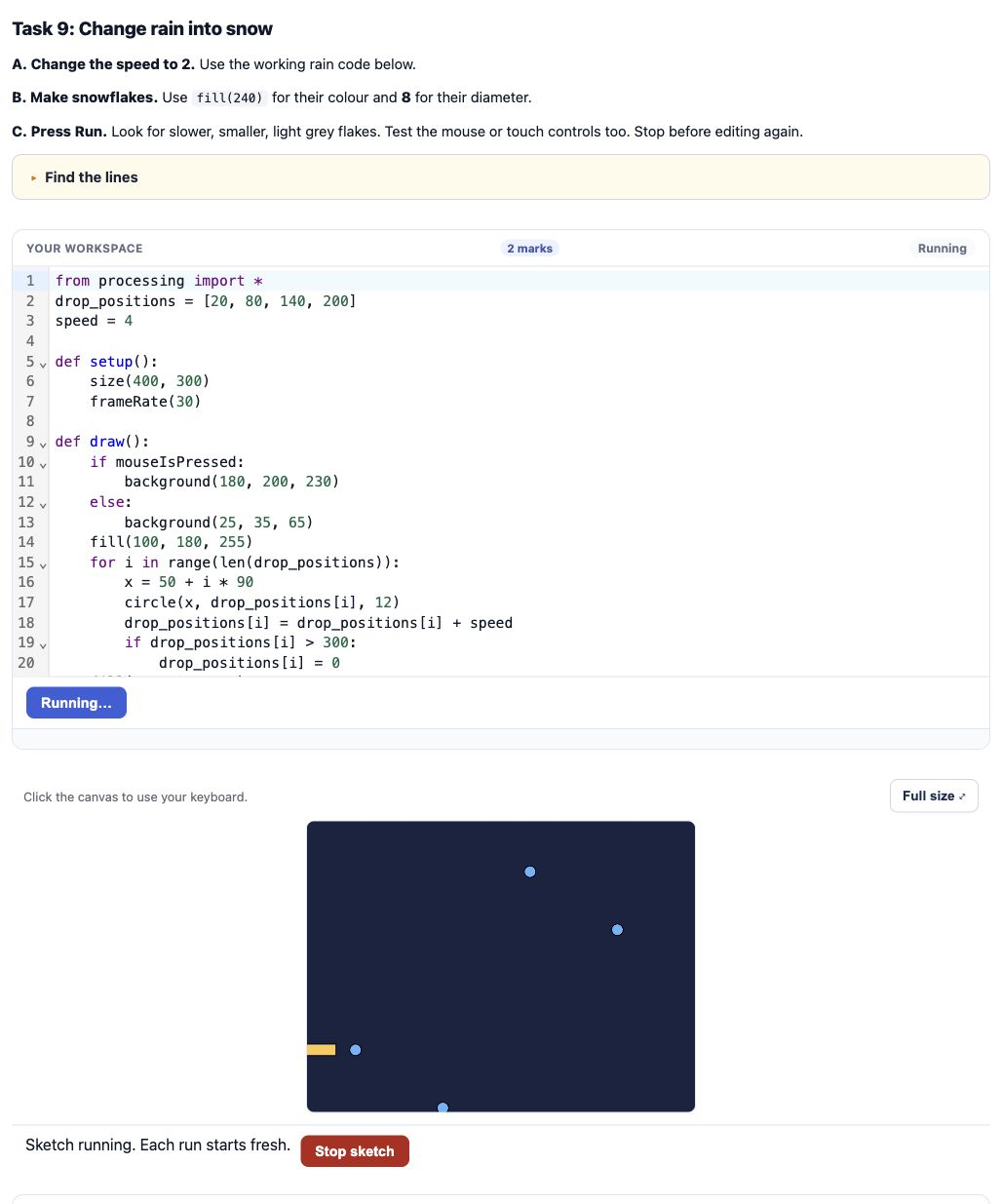
Use Processing for practice or teacher-reviewed work; interactive sketches do not support automatic checked-answer cells. Processing availability depends on the runtime enabled on the platform. Use the Worksheet preview to verify your sketch before setting it.
For a weather animation, for example, ask students to change the speed and size of falling particles, run the sketch and explain the effect of each change. Stop the sketch before editing again.
 Enlarge image
Use files and data
Open Data files in the Worksheet to supply files for the class and use the matching filename in Python. Each Worksheet has its own files; there is no shared file folder across a sequence of Worksheets.
For example, supply scores.csv and use the CSV example in Workspace files and resources in a Python cell. The code works with a supplied file without needing a Workspace file explorer.
In programme Worksheets where student uploads are enabled, authors can add a Files cell. Students can use uploaded files in practice code. Checked answers use teacher-supplied data files so every student’s code runs against the same inputs.
Prepare a checked answer
For a short task, ask: Use a loop to add the scores. Store the answer in total. Give students this starter in a Checked answer cell:
scores = [4, 6, 8]
total = 0
# Add each score to total.
In Marking and test cases, enter a complete Reference solution:
scores = [4, 6, 8]
total = 0
for score in scores:
    total += score
- Choose + Add check and Variable value. Use
totalas the name and18as the expected value. Give the check a useful student label, such as “Total includes every score”. - If the learning objective requires a loop, add a Python feature check for a for loop. Checking only the value would also accept
total = 18. - Use Preview to try the reference answer, then an answer that misses a score. Check that the feedback helps students identify the problem without supplying the solution.
Suggest from solution can help prepare checks, but review the suggestions before choosing Apply selected. The reference solution is not the starter code students should receive.
For a stronger check, add a test case with Replace variables: replace scores with [1, 2, 3] and set that test case’s expected total to 6. This checks that the code processes another list rather than reproducing one fixed answer. For input(), enter test-case answers one per line, in the order the program requests them.
Match checks to the learning
Use Printed output checks when exact printed output matters. Use Variable value or Custom rule (Python) checks when several output formats could be correct. Python feature checks can check for a taught construct rather than accepting any program that prints the expected answer.
Try more than one correct solution and at least one plausible mistake. Avoid a test that rejects a valid approach because it differs from your reference solution.
For all supported question types and marking choices, see Worksheet questions and marking.