On this page
Use the Worksheet generator when you know what your students need to practise. You can describe a lesson from scratch or bring a Word document, PowerPoint slides or a PDF. You keep control of the questions and what goes to the class.
Start with a brief or attach your files
In Lessons, choose + New → Blank Worksheet. Beside Choose the first cell, choose Generate with AI. If the button is missing, check that the Worksheet is empty and that your school has access to teacher AI.
Give the year group, lesson time and what students should be able to do by the end. For example:
Year 7, 25 minutes on binary and characters. Start with a short vocabulary check. Give students a 7-bit ASCII table to encode and decode a message, then ask them to explain what happens if the receiver uses a different coding scheme.
Choose How much explanation? to match the lesson: Questions only for revision, Brief recap for familiar content or Explain and model when students need a worked example. Exam-style questions is a separate choice.
Use Attach files to add your resources. Open each file’s entry to select the relevant slides, pages or sections. The generator reads text. Describe any diagram the lesson depends on. For questions you wrote yourself, select Keep the wording of my own questions if you want students to see your original phrasing.
Change the plan before it writes questions
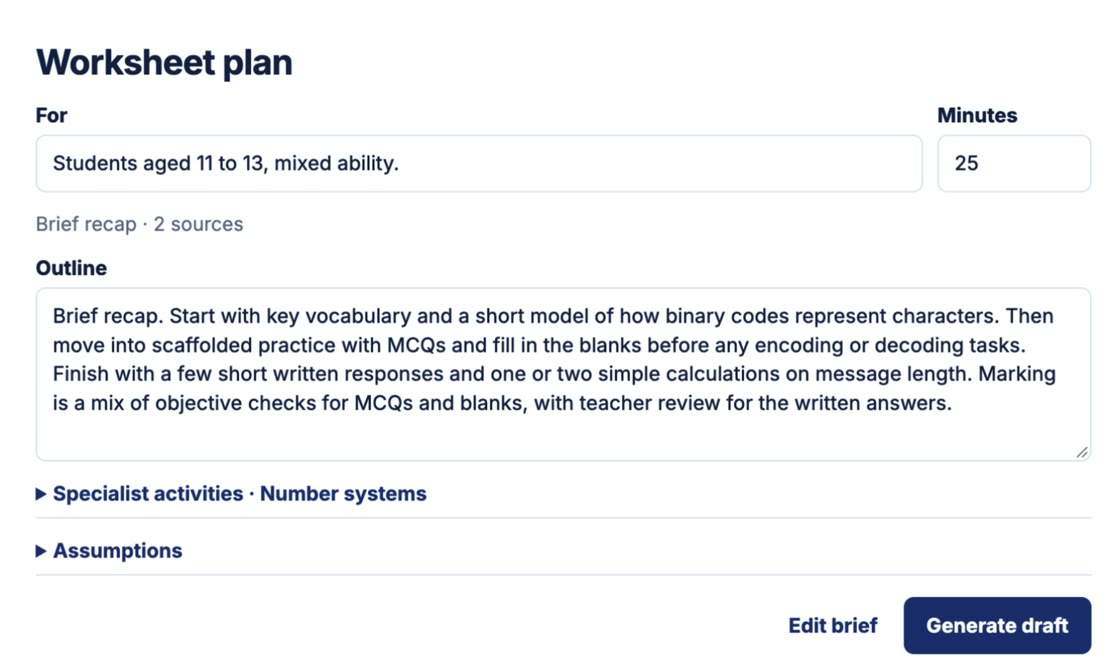
Choose Plan worksheet. Check For, Minutes and Outline. You can edit the outline directly. For example, move the worked example before the first independent task or ask for one question where students explain their reasoning.
 Enlarge image
Open Specialist activities if the lesson needs Python, number systems or trace tables. If the generator asks for clarification, add your answer and choose Update plan. Use Edit brief to change the source materials or the overall lesson. When the plan fits, choose Generate draft.
Review the draft and its mark schemes
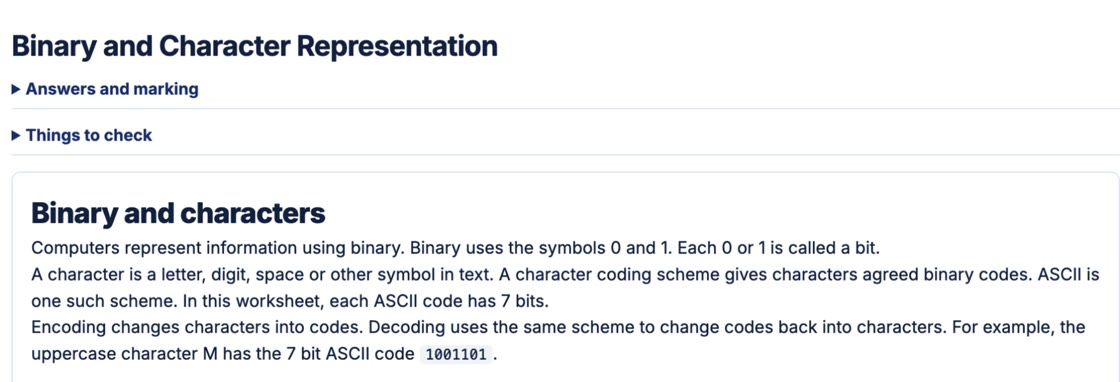
Read the introduction and work through the questions in order. For marked questions, open Answers and marking to check the suggested answers and mark schemes. If Things to check appears, read the points it raises. Check that any tables, data or code give students what they need to answer independently.
 Enlarge image
If a cell needs attention, open See what needs fixing. Choose Fix this cell (or Fix these cells) to retry. If you want to teach the lesson without those activities, select the option to use only the ready cells, then check the sequence before accepting it.
If the whole lesson needs a different approach, choose Back to plan, change the outline and generate a fresh draft. If the draft is suitable apart from a question or two, choose Use this draft. This puts the content in your lesson. Students receive it when you set it to a class.
Edit, preview and set
Choose Edit to change individual cells, answers or mark schemes. Switch to Preview to try the questions and code. For work you have authored, open Worksheet tools (the three dots) and choose Check worksheet to review any issues before sending.
Set the Worksheet to a class when you’re ready. To see the Year 7 example from the original Word document and slides through to a draft, watch the 76-second walkthrough.