On this page
A Worksheet combines teaching content and student responses in the order your lesson needs. You can mix theory and programming without making every question a coding task.
Choose a cell type
| Cell | What it is for |
|---|---|
| Text | Explanations, instructions, worked examples and links |
| Text answer | Short or longer written responses |
| Multiple choice | One-answer or choose-all questions |
| Fill in the blanks | Missing words, code or values in a prepared question |
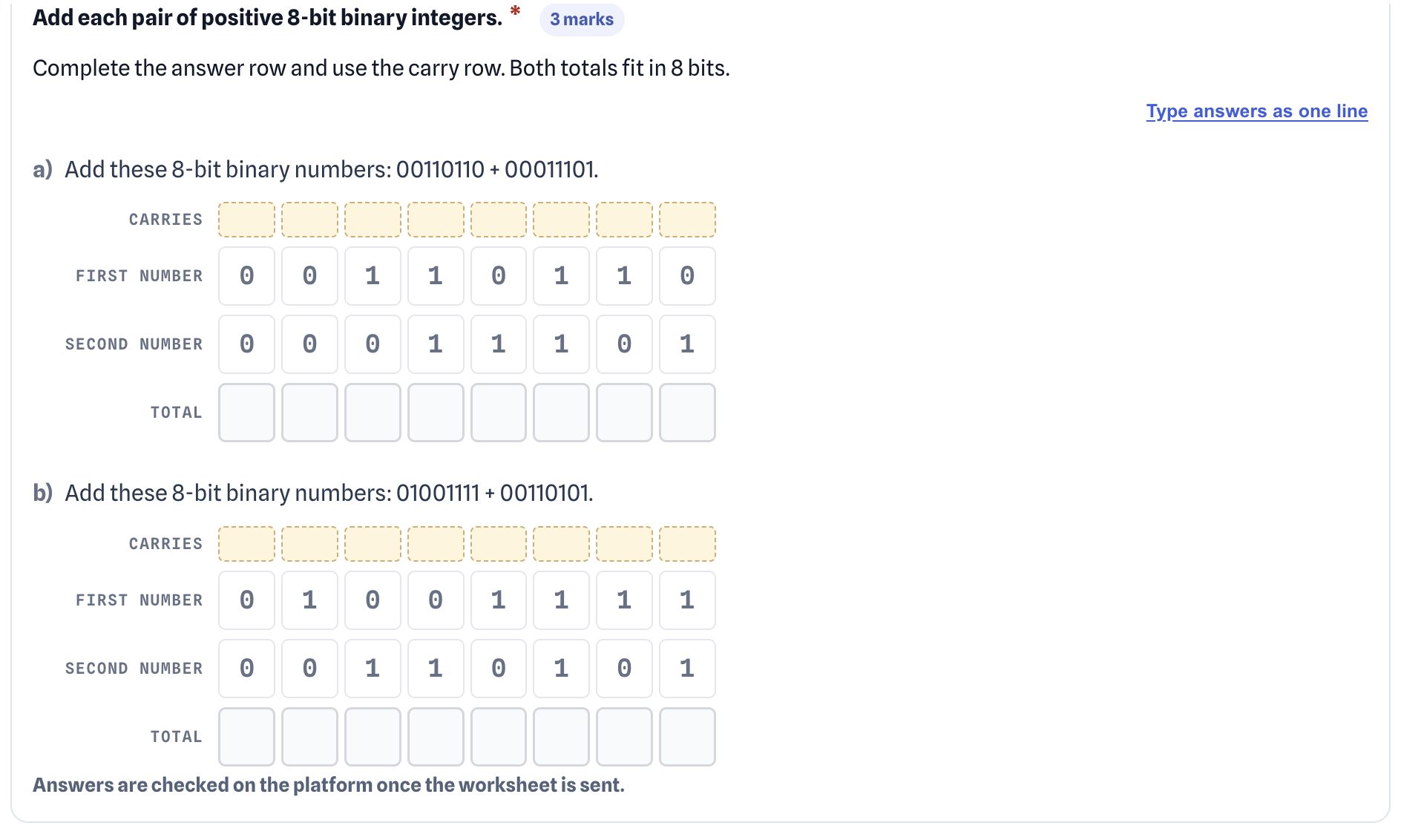
| Number work | Structured number-system questions and working |
| Trace table | Tracing an algorithm row by row |
| Code | Python demonstrations, practice or checked answers |
Use Text and run-only Code cells to introduce an idea. Add an answer cell when you want students to earn marks. In programme Worksheets, authors may also have a Files cell for student uploads.
Prepare the answer settings
- Multiple choice: choose One answer or Choose all that apply, then mark the correct option or options. Make the wording match the selection mode.
- Fill in the blanks: check every blank’s answer and accepted format. In code questions, decide whether students are supplying a number, name or expression.
- Number systems and trace tables: check the configured values or algorithm, then work through the question in the student preview. Check each expected result, not just the final total.
- Written answers: prepare marking guidance and a mark total. Students need a clear question; teachers need enough guidance to mark different valid answers consistently.
Do this again after changing a copied question. An edited prompt with an unchanged answer key can reject correct work.
 Enlarge image
Write the question and guidance together
For example:
Question: Explain why a program might use a loop to process a list of names. 2 marks.
Marking guidance: Award one mark for explaining that the same operation can be applied to each name, and one for explaining that this avoids repeating the same instructions for each item. Accept equivalent wording; do not award the same idea twice.
State acceptable alternatives and any important limits. Keep the total consistent with the question. Guidance is for marking; it should not give students the answer in their visible instructions.
Automatic checks and teacher judgement
Multiple-choice, blanks, number-system and trace-table questions use their configured answers or derived results. Checked Python uses the checks you define. Review the available marking options for the specific question type; do not assume all types award partial marks in the same way.
Written responses need judgement. If you used the Worksheet generator, check the marking guidance it supplied with each question. You can edit it. Where teacher AI is enabled, it uses that guidance and the student’s response to draft marks and feedback for you to review. A draft is not a returned mark.
For code, checks and marks serve different purposes. Several checks may diagnose one skill, so the number of checks should not automatically determine the mark total. Programming in Worksheets explains code roles and checking.
Decide when students see feedback
Feedback timing is configured in the question’s authoring controls, where supported. For example, multiple choice has Show the result straight away, and fill-in-the-blanks offers Straight away or Teacher released. Check the settings on each question rather than assuming one choice covers the whole Worksheet.
When sending work, Use Worksheet settings keeps these choices for the class. For an assessment, choose No instant checking to hold back automatic results across the assignment. Students can still run code. Returning marks is a separate action in class marking.
Choose Preview to try each type of question as a student. If you have authored or changed the questions, open Worksheet tools → Check worksheet and review the issue list. Check that each question still matches its answers, marks and guidance.
Review and return
Review answers by question across the class, edit or approve draft marks, then return feedback when ready. Returned results help students see what to improve and contribute to the platform's progress views.
For the full workflow, see set a Worksheet, mark a set of Worksheets and read the progress matrix.