Workspaces & Lessons — a browser Python IDE with a teaching layer
Every student now has a persistent Python workspace in the browser. Teachers author lessons, share them with a class or with any teacher anywhere, and broadcast code live to the whole room.
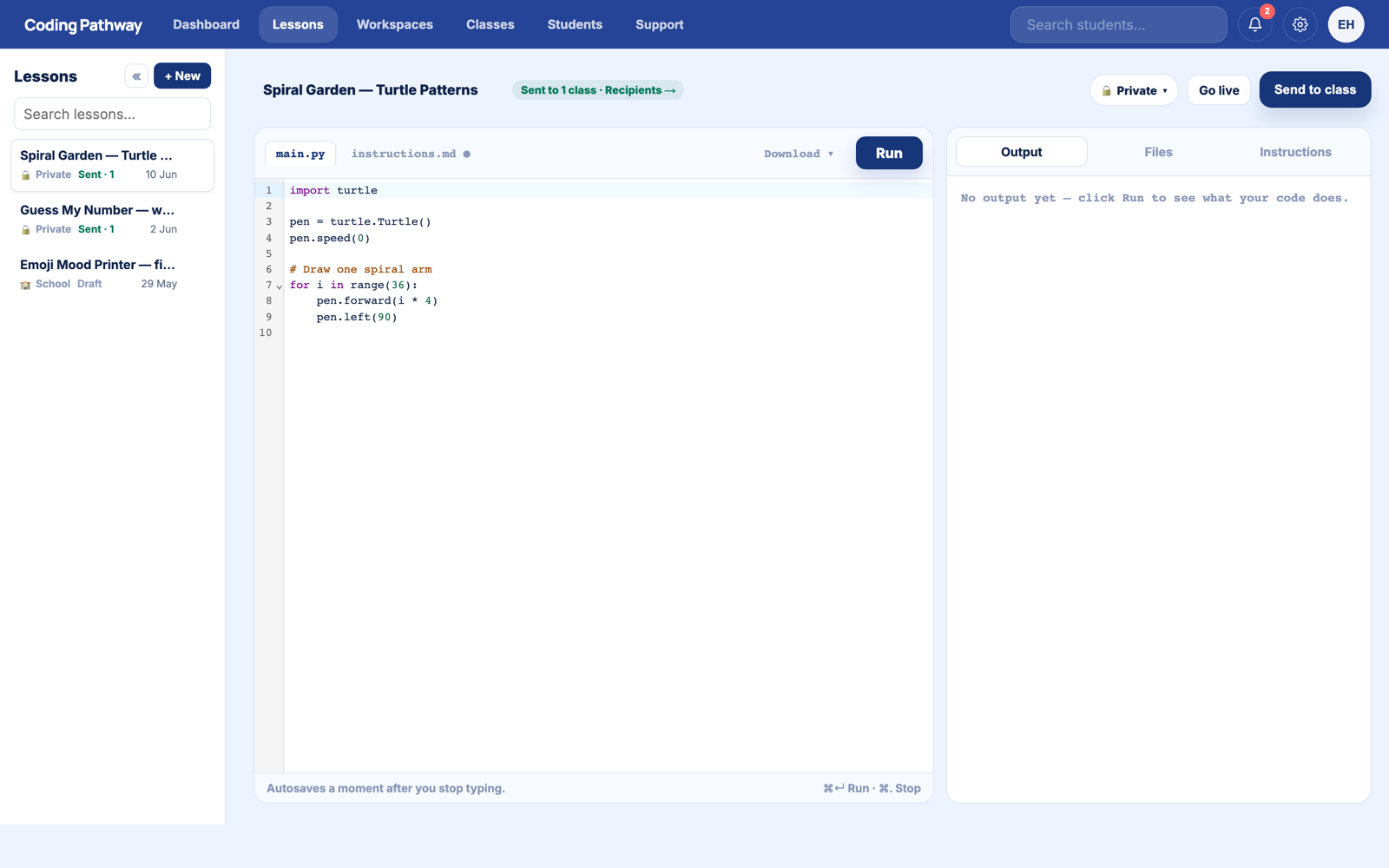
The biggest addition to Coding Pathway since launch is now live for every school: Workspaces and Lessons, a full in-browser Python environment with a teaching layer designed around real classrooms.
What students get
Every student has a personal Projects area: persistent Python workspaces that run entirely in the browser. No installs, no accounts on third-party sites, nothing for IT to maintain. Students create their own projects, keep them between lessons, and pick them back up at home.
What teachers get
Lessons are teacher-authored workspaces: instructions and starter code together. Once you have written one, you can:
- Share it with a class as a resource. Students get their own editable copy in their projects area and can return to it whenever they like. This is how most lessons get used.
- Set it as work when something genuinely needs a deadline, with hand-in tracking so you can see who has started, who is in progress, and who has finished.
- Broadcast it live. Students watch your code update in real time on their own screens, then copy the lesson into their workspace with one tap and carry on.
- Share it by link with anyone. Paste a lesson link into a worksheet, a slide deck, or a teaching community. Any teacher who opens it can copy it into their own library for their own classes, and colleagues in your school can pick up your lessons directly.
Writing instructions is the slow part, so there are staff-only AI tools to tidy pasted material (an old worksheet becomes clean lesson instructions) or draft from scratch, including exam-style scenarios. You review everything before students see it. There is no student-facing AI anywhere on the platform.
Reviewing student code
The review workspace lets you move through a class set of workspaces one student at a time, with keyboard navigation between students. You can:
- Leave feedback on the whole project, which students see and can reply to
- Pin a comment to an exact line of code, where it stays when the student opens their project
- See a Before / Now comparison showing what the student actually changed since the previous day
- Award trophies for good work, in one tap, without leaving the review
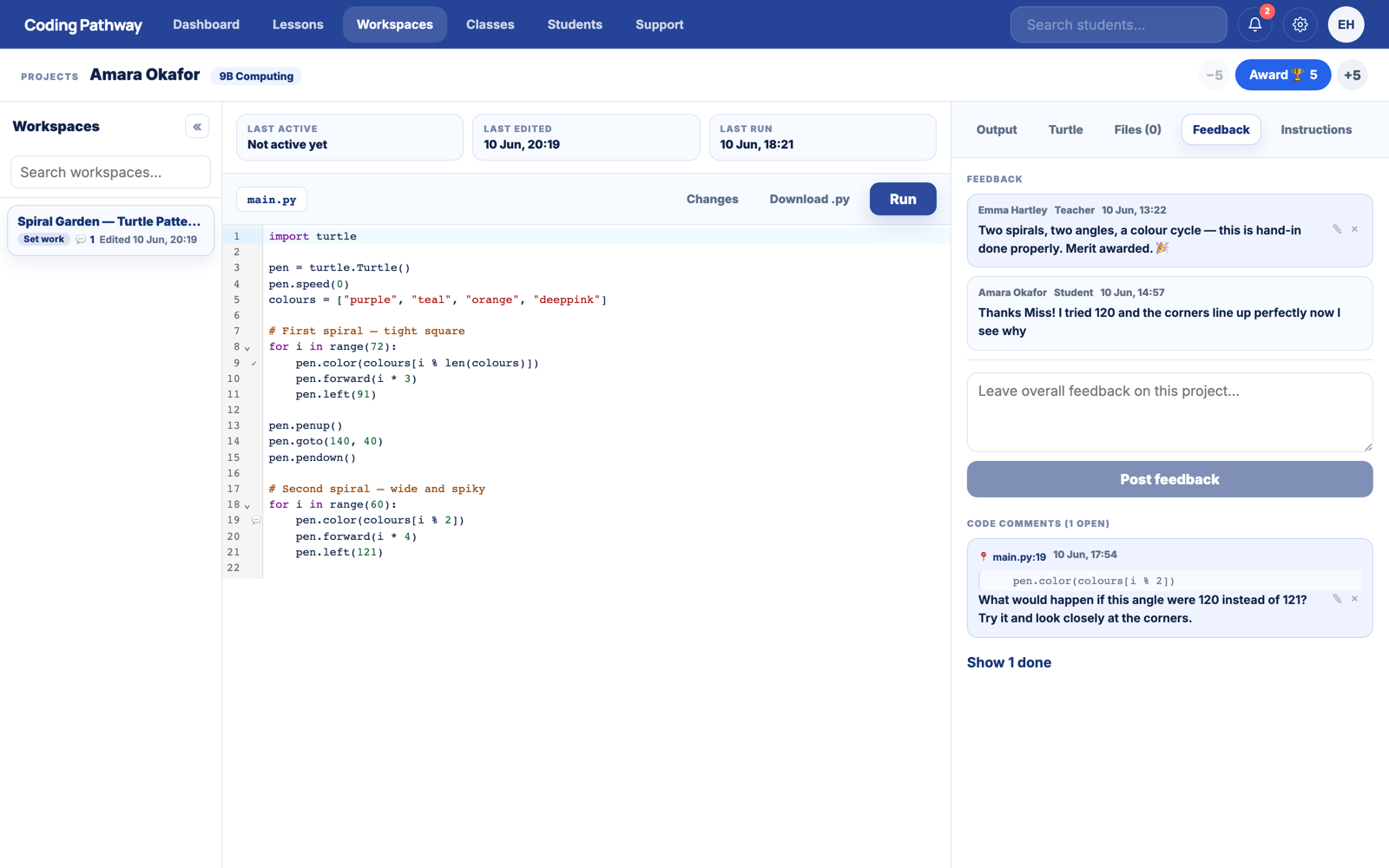
You comment, the student sees it next time they open the project, they reply or mark it done, and you can see they have engaged. Feedback stops evaporating.
Try it with a ready-made lesson
The quickest way to feel how lessons work is to open one. These two examples are open for any signed-in teacher:
Copy one into your lesson library, have a look at how the instructions are put together, and set it to a class whenever you are ready.
Why this matters
If your department has relied on a browser Python tool plus a separate way of collecting work, this replaces both, and adds the visibility neither of them had.
Workspaces and Lessons are included in every school's access. Read the guides to get started, or sign in and click Lessons.