Class marking, rebuilt in the classroom
Marking on Coding Pathway is now a workflow you can follow without thinking about it. Open a Worksheet you have set, see what is marked, what is waiting for you and what students can see, draft against written answers with AI assistance, approve a question at a time, and see how the class did: where they stand, which questions to go over and who needs you first.
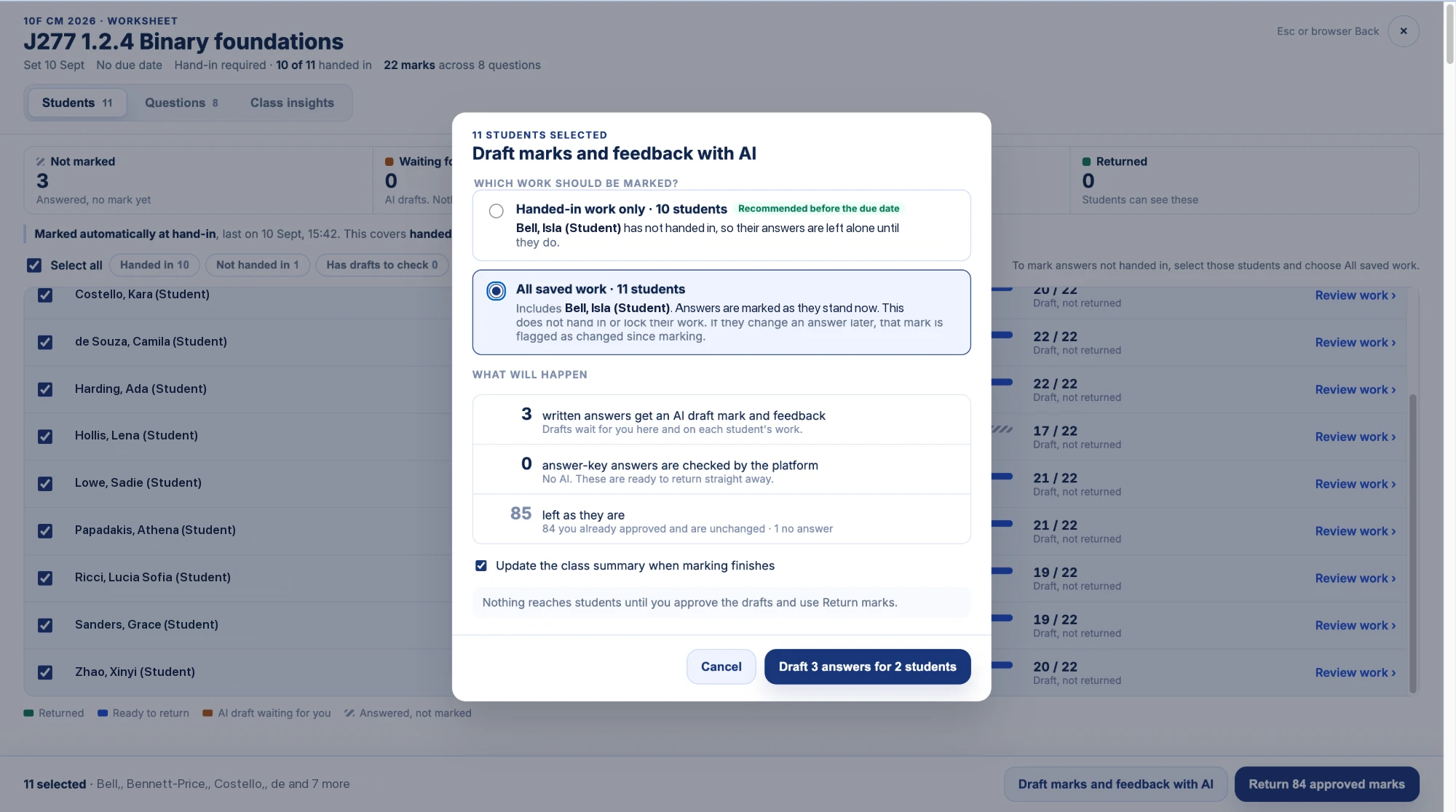
Your Year 10s hand in a Worksheet. Thirty students, eight questions, three of them written answers that need reading. You know the questions you will ask yourself before you have opened anything. Who has handed in? What is already marked? What is still waiting on me? What can they see? And who do I need to catch next lesson?
Coding Pathway has been able to do most of the marking since August. Multiple choice, fill-in-the-blanks, number and trace-table questions are checked as students work, AI drafts a mark and feedback for each written answer against your own marking guidance, you review by question, you return, and a class summary follows. What it could not do was answer those five questions cleanly. The pieces lived in a side drawer on Recently set work. I use it with every class, every day, and even having built it I would find myself unsure what had been marked, what was waiting on me and what students could see.
Over the last month, ten to fifteen teachers who use the platform every week told me the same in their own words: impressive, it works, but it is not clear. This release is the result, a team effort from our community and from my own teaching. The drawer has gone. In its place is one marking view for every piece of work you set: the same marking, joined up in a much more natural way, with each step saying plainly what it will do before you press it.
Where the class stands, in four counts
Open the marking view from Recently set work, from the Class marking button on a student's work, or from the class progress matrix. The first thing you see is four counts, and each one means exactly one thing:
- Not marked: answered, no mark yet.
- Waiting for you: AI drafts you have not decided on. Nothing is sent until you approve.
- Ready to return: approved by you, or checked against the answer.
- Returned: students can see these.
Under the counts, one line says what happened last, such as "Marked automatically at hand-in", with the time and how many students it covered. Then the students, one row each: handed in or not, a bar showing how much of their work is marked, not marked, waiting for you or ready to return, and their total so far. I look at that bar more than anything else in the view, because one glance says whether the class is ready to go back. Pick a group in one click: Handed in, Not handed in, Has drafts to check, Not started.
Draft marks for written answers, then decide a question at a time
There is one marking action, Draft marks and feedback with AI, and it asks one question before it runs: handed-in work only, or all saved work. The student rows have already shown you who has handed in and who has an answer for every question, so you can make that choice with confidence. I often set work without a due date so students can finish it at home in their own time. When a student has finished but forgotten to hand in, I can now mark what they saved and return their marks anyway. Returning marks locks the Worksheet for that student, which is often what you want when the work was meant to be handed in. Before you confirm, it sets out exactly what will happen: how many written answers get a drafted mark and feedback, how many questions with a set answer are checked with no AI involved, and how many are left alone, with the reason.
The drafts wait for you on the Questions tab, grouped by question with the class average alongside. You read every answer to one question together, with the marking guidance beside them, and approve them in one go, edit any you disagree with, or keep the feedback wording and set the mark yourself. Reading thirty answers to the same question in a row is quicker than reading thirty Worksheets, and I think it is fairer marking too.
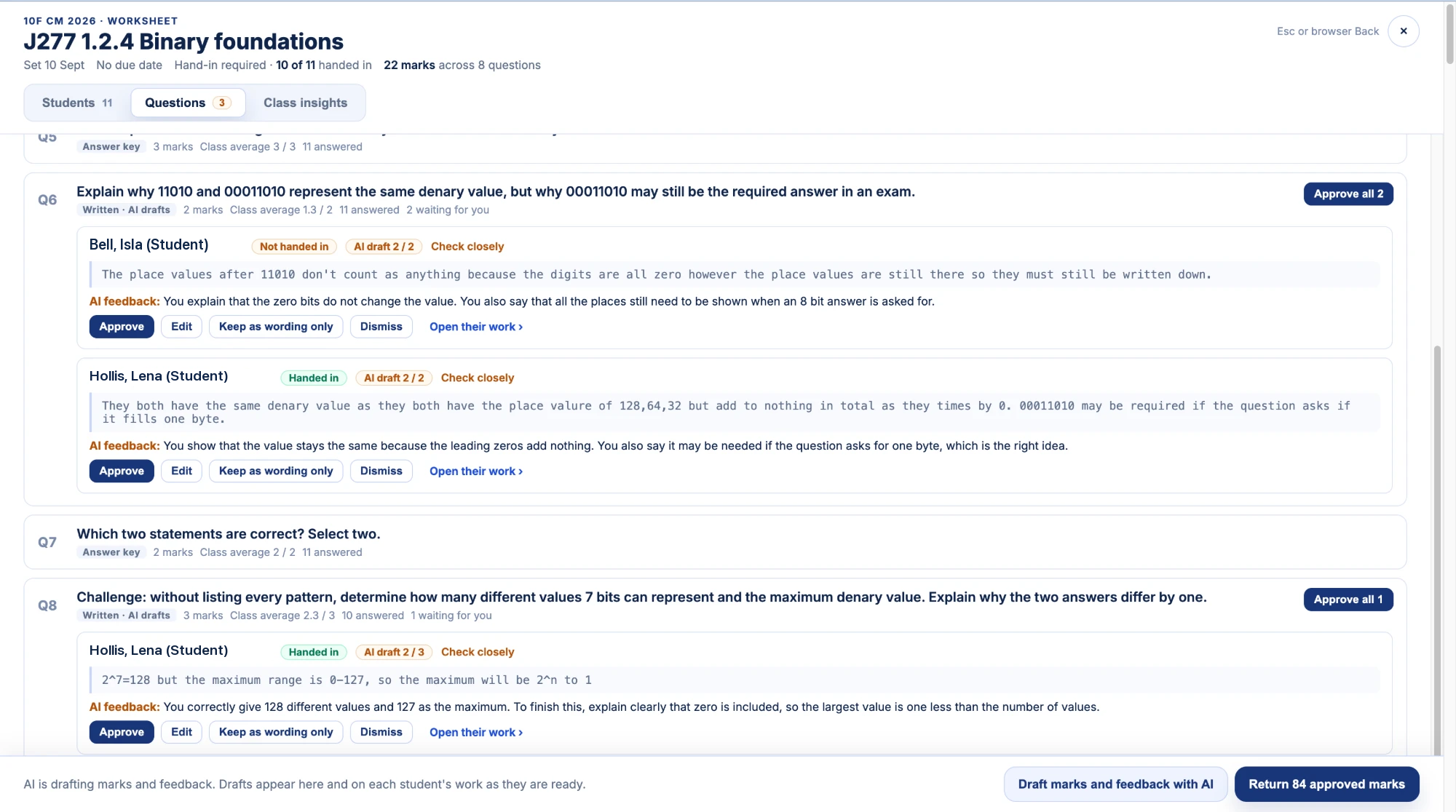
Every draft is labelled as a draft until you approve it, and students never encounter AI anywhere on Coding Pathway.
Who needs you first
Class insights shows where the class stands: the median and range, the class average on every question in Worksheet order, and a short "Where to start". If the class scored closely together, it points you at the questions to go over. If a few students are well below the rest, it names them. The class summary underneath, drafted by AI for you alone, picks out the misconceptions behind the weak questions and the students worth a conversation.
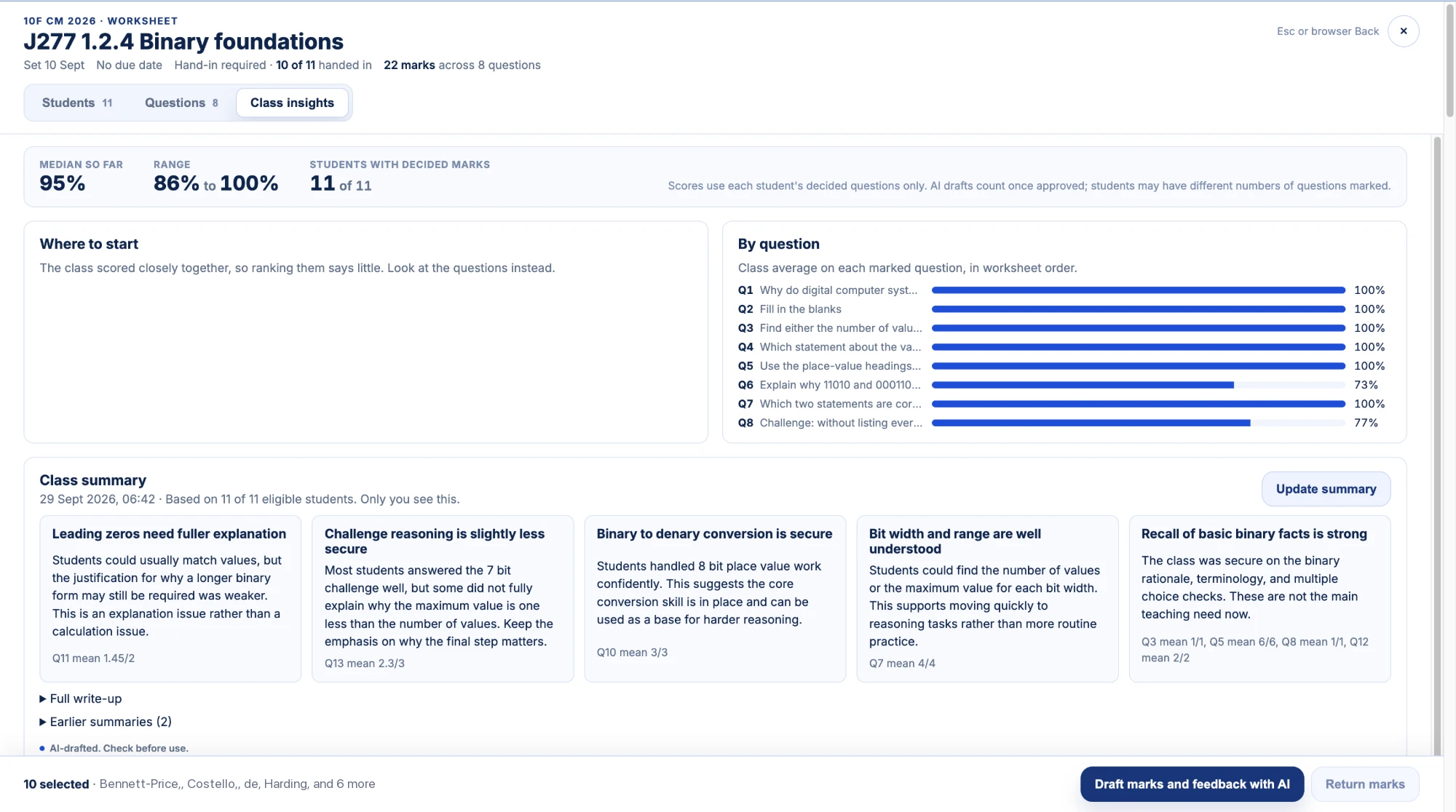
None of this is a judgement. It is a place to start when you have five minutes before the next lesson.
Return marks, knowing what students will see
One return action, Return marks, tells you how many marks are going to how many students before you press it, and whether they will see your note as well as the mark. If a student has not handed in, it says so and lets you leave them out, because returning marks locks their Worksheet.
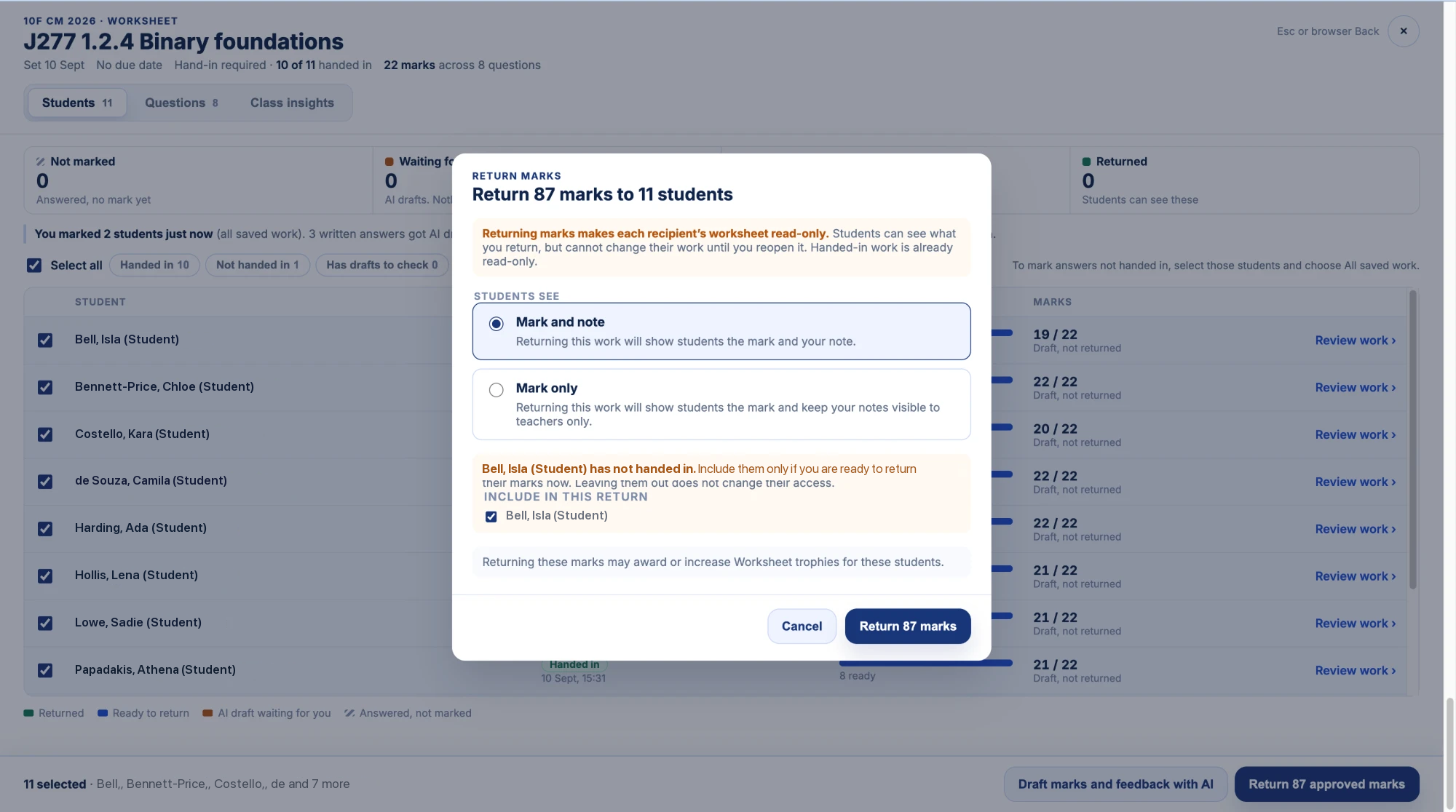
Nothing reaches a student until you return it. Returned marks now earn the student trophies, so a class that does its Worksheets well sees it in the same place as the core course; untick "Award trophies for this Worksheet" when you set the work if you would rather a particular piece did not count. Back closes the view and puts you where you were.
One answer at a time
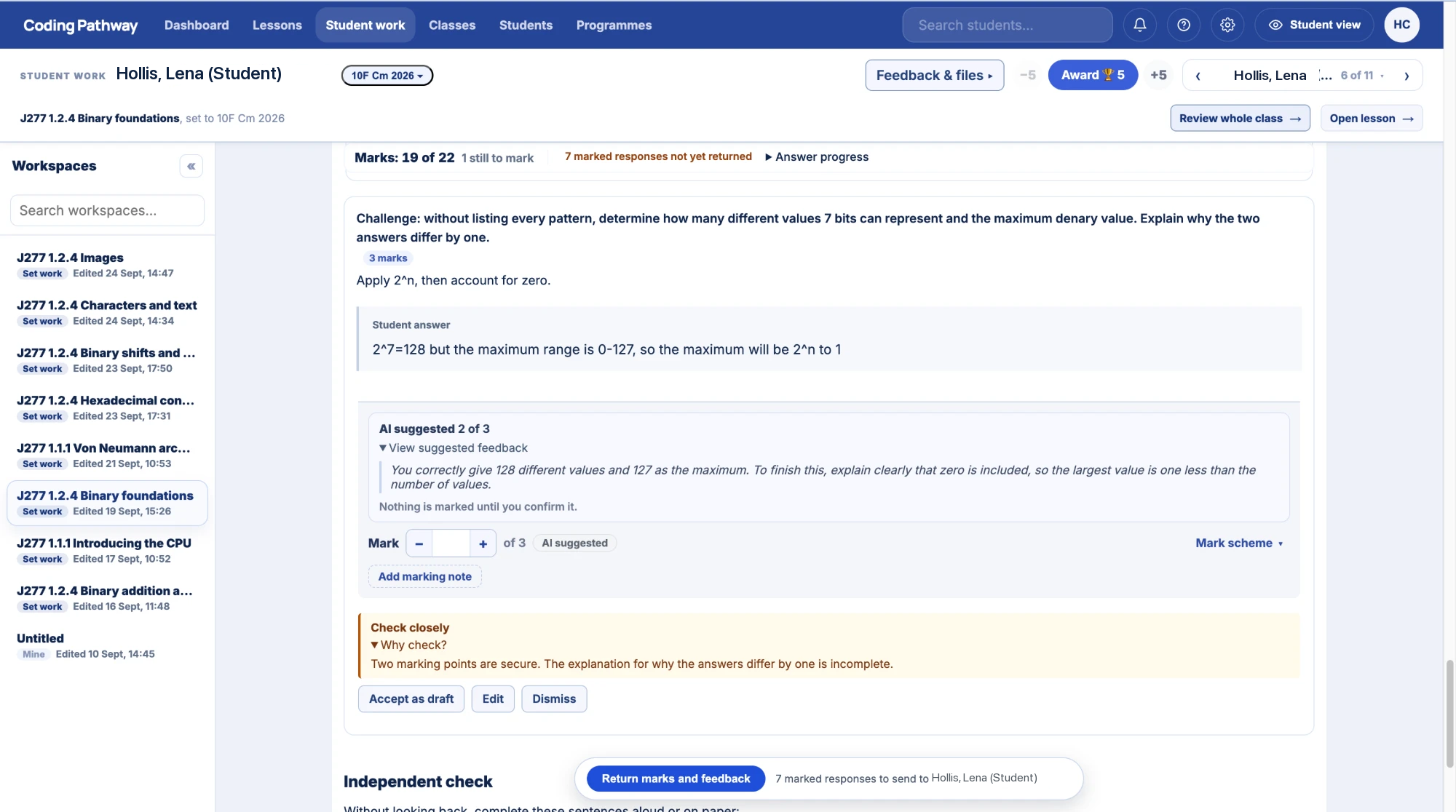
On a student's own work, any written or code answer now has a Draft button in the mark editor, or Redraft if a mark is already there. It shows you what the AI will be given, the Worksheet, the year group, the question and its marking guidance, and asks "Anything else for the AI?" for that one draft. A redraft sits beside your existing mark for you to compare, and your mark stands until you choose to use the new one.
The work to put through it
A marking workflow is only as good as the work you set. More than 400 Worksheets are ready to preview, copy and set, in specification order: 96 for OCR J277, 125 for Edexcel 1CP2 and 200 for OCR H446. Every written-answer question in them carries the marking guidance the drafts are written against, and every other question is checked as students work. Alongside them, the step-by-step core Python course carries on as it always has, at the student's own pace and free for every student.
Smaller changes since the last update
- Copy student link on set work gives you one link that works for every class the work was set to, so one Google Classroom or Teams assignment covers them all.
- The KS3 Turtle Worksheets and the OCR H446 programming techniques Worksheets have been refreshed.
I have marked my own classes this way for the past two days, and for the first time it feels ready: a workflow rather than a set of features. It got here because teachers said what was not quite right. The guide to marking a whole class walks through it step by step. If a count does not match what you expected, or a step still makes you stop and think, tell me and I will fix it.