On this page
Use a reset when students need a fresh attempt at a Python course unit. If a student needs to revise a marked Worksheet or Workspace, reopen their returned work.
A reset removes recorded work and assessment attempts for the selected unit. Teachers in the student’s other classes will see the change too. You cannot undo it from your teacher account.
Choose one student or the whole class
- Open the class Progress matrix and choose Units.
- For one student, open their cell for the unit. For the whole class, open the unit's column heading.
- In the detail panel, open Reset progress.
- Check the student or class name and the unit before continuing.
Review what will change
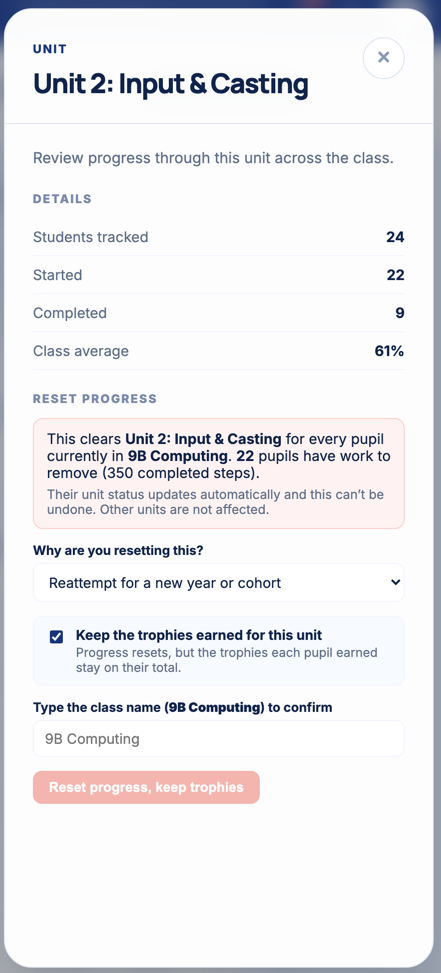
The panel previews the affected progress and assessment attempts. For a class, it also shows the number of students affected.
Choose a reason under Why are you resetting this?. Review Keep the trophies earned for this unit after choosing the reason. For example, Reteach and redo the unit suggests keeping trophies, while Assessment retake with a fresh attempt suggests clearing them. You can change the suggested choice before confirming.
 Enlarge image
Confirm the reset
For a class reset, type the class name as requested. The final button states the choice: Reset progress, keep trophies or Reset progress, clear trophies.
Choose Keep progress to cancel. After a reset, check the unit in the matrix and tell students which unit to work through again. Their completion and assessment status are recalculated from the reset progress.
If you only need to inspect work or decide what to reteach, start with course progress instead.