On this page
Open what the student is working on
If you know the student’s name, open Student work and find their Worksheet or Workspace. If you already have the class open, choose Progress matrix → Set work and select the cell where the student’s row meets the assignment.
- Worksheet. Read the student's saved answers and check whether feedback has been returned. Use Class marking to compare responses from several students.
- Workspace. Inspect the saved files and the last recorded output in Console. Run a copy to try a different input without changing the student’s work. Review and mark Workspaces explains how to give marks and return feedback.
See what feedback the student can read
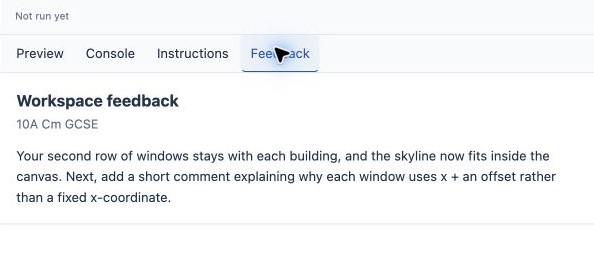
In a Workspace, look for a returned mark or feedback note. A saved marking draft stays private until it is returned. Comments you have already posted beside a line of code are visible to the student.
 Enlarge image
Follow progress across lessons
Use student search in the top bar, select the student and choose View full record. Use Assignments to see their set work and Curriculum progress for their Python course. If a learner is stuck on a particular course step, open that step from the class matrix.
For a pattern you’ve spotted in a Worksheet, review the same question across the class to decide who else needs help.